Fintecor Reporting
- Server Requirements and On-Premise Installation
- Technical Architecture
- System configuration and administration
- User Access & Role-Based Permission
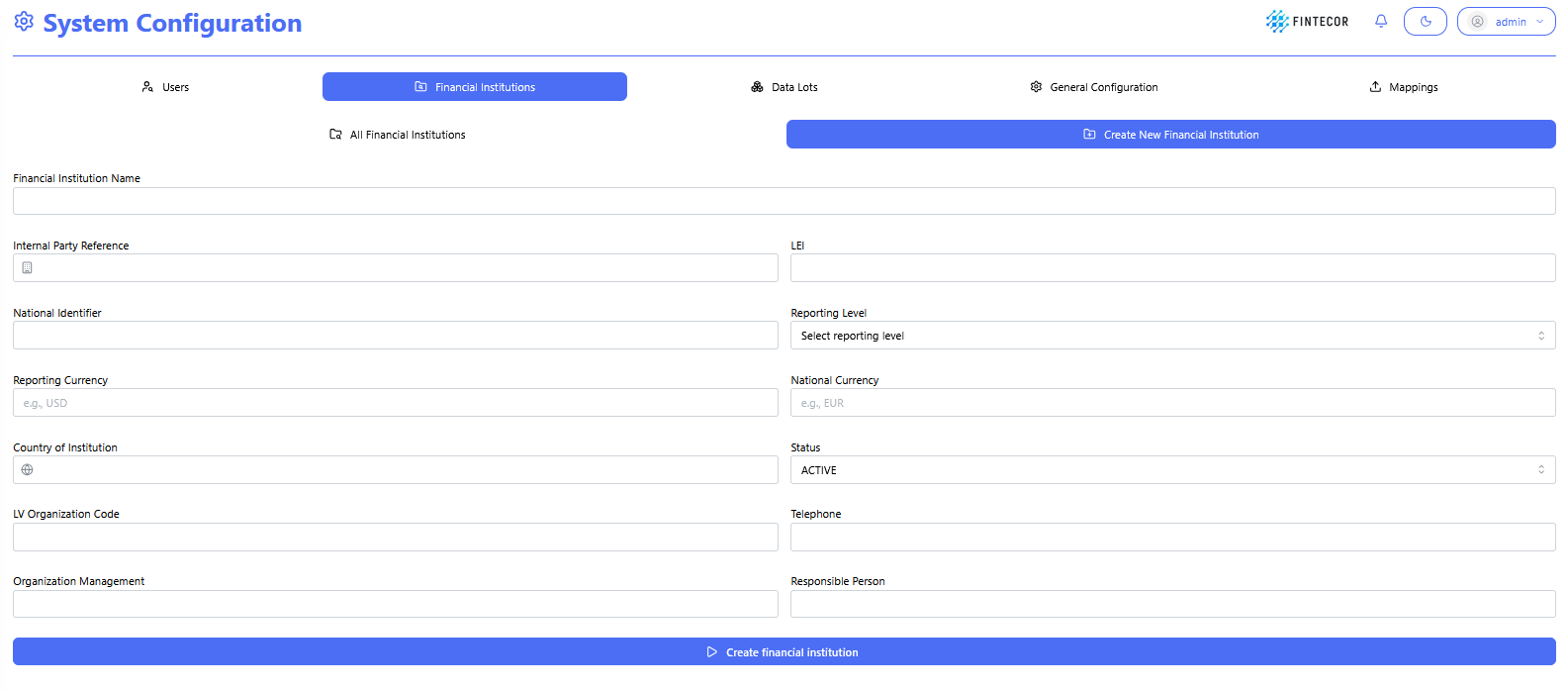
- Financial institution configuration
- Data lots configuration
- General Configuration
- System Logs & Revision History
- Licence
- Reporting Set Updates
- Datasets administration and data load
- User Interface Guide and Navigation
- Operations with Reports
Server Requirements and On-Premise Installation
Network Requirements
How it is deployed
Three components, delivered as Docker container images and run with Docker Compose on a single Linux server. The database can instead be pointed at an existing Database cluster if you already operate one.
Network Requirements
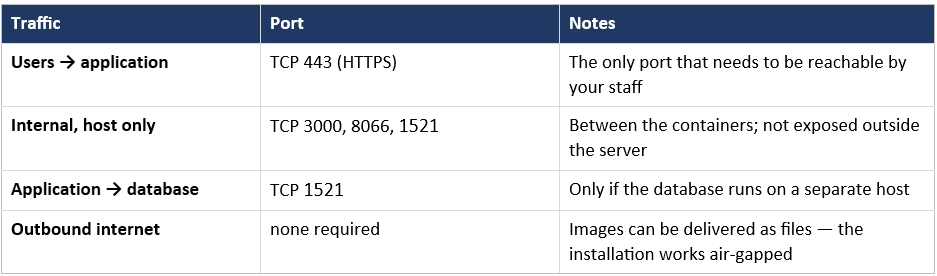
Users need a current desktop browser and a DNS name pointing at the server, matching the TLS certificate. Two-factor authentication uses a standard authenticator app on the user’s phone; no SMS gateway is required.
Installation
- Prepare the server.
Provision the Linux host per the table above, install Docker Engine and the Compose plugin, set the time zone, and create the DNS record and TLS certificate for your reporting hostname. - Prepare the database.
Either let the delivered Compose stack run Oracle on the same host, or create an empty database and a dedicated user on your existing cluster. No schema work is needed — the application creates and migrates its own schema. - Receive the delivery package.
Fintecor supplies the two container images, a docker-compose.yml and a configuration template, either as files for an air-gapped install or from a private registry. The web application image is built for your specific reporting hostname, so confirm that URL to us before delivery. -
Load the images.
docker load -i fintecorreporting-backend.tar docker load -i fintecorreporting-frontend.tar - Fill in the configuration file.
Database URL, user and password; the browser origin allowed to call the API; the encryption key protecting two-factor secrets; etc. -
Start the stack.
docker compose up -dOn first start the service creates its database schema and loads the supervisory glossary and the EBA / EGDQ validation rule set. This takes a few minutes and happens only once.
-
Verify.
All containers report healthy and the service answers its health check:docker compose ps curl http://localhost:8066/actuator/health - Publish it.
Point your reverse proxy at the two internal services over HTTPS on port 443 and restrict access to your corporate network or VPN. - Go live.
Log in with the administrator account supplied by Fintecor, change its password, enrol two-factor authentication, create your users and import your first reporting set. - Set up backups.
A nightly database dump plus the mapping-file volume is sufficient to restore the whole installation. Fintecor provides the exact commands.
Upgrades and Support
An upgrade is a new image plus a restart of one container; the schema migrates itself, and any release rolls back to the previous image in seconds. Template and validation-rule updates that follow regulatory changes are delivered the similar way, as part of your subscription.
Technical Architecture
Solution Architecture
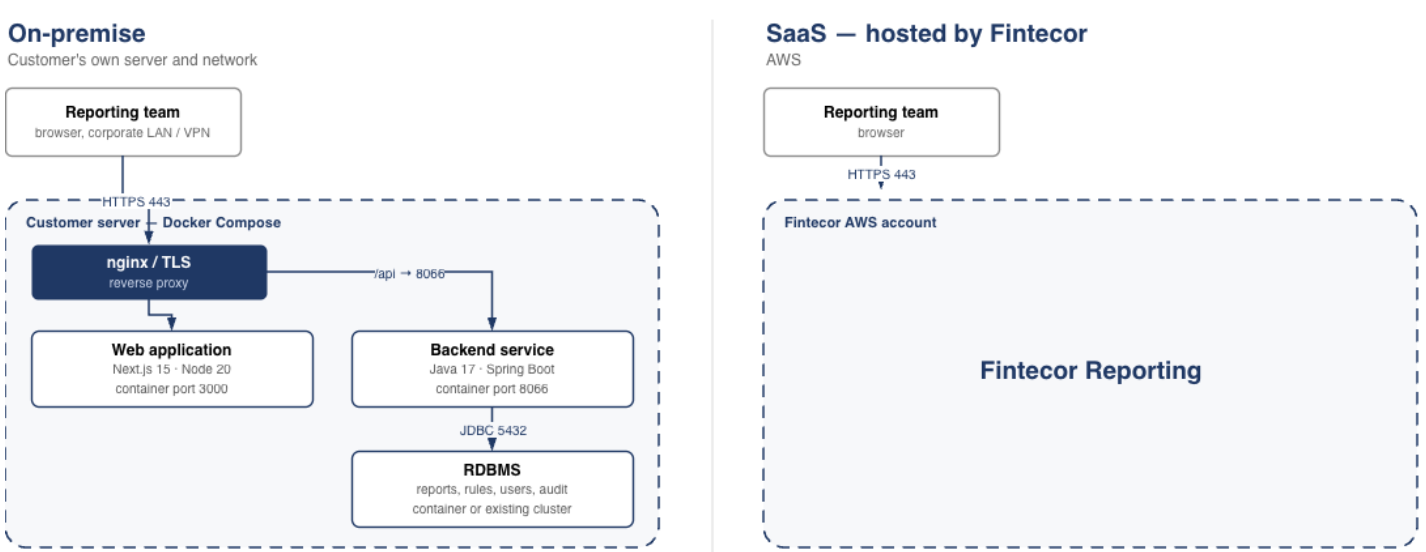
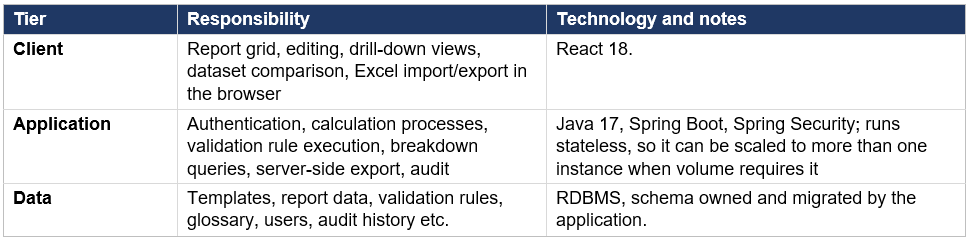
The platform is a three-tier application. A browser client talks over HTTPS to a stateless REST backend, which is the only component that touches the database.
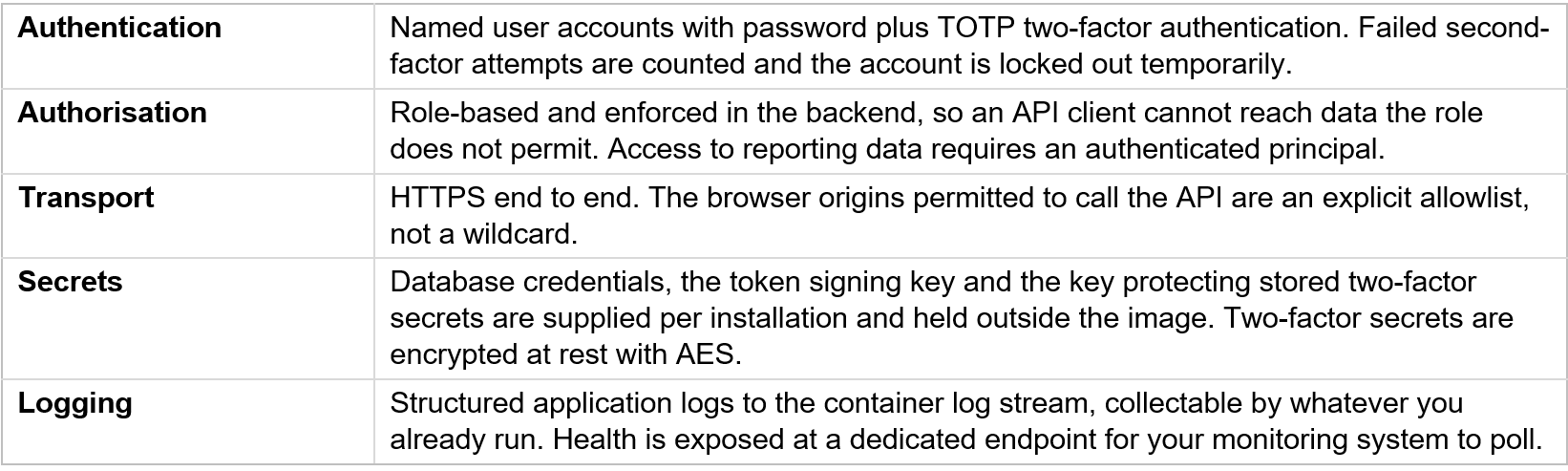
Security
On-premises and SaaS Compared
The two models differ in who operates the stack, not in what the software does.
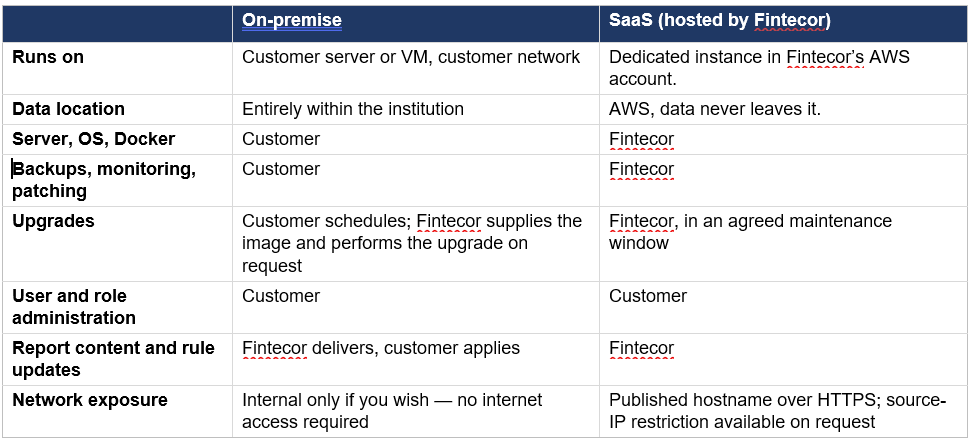
Technical Requirements
On-premises

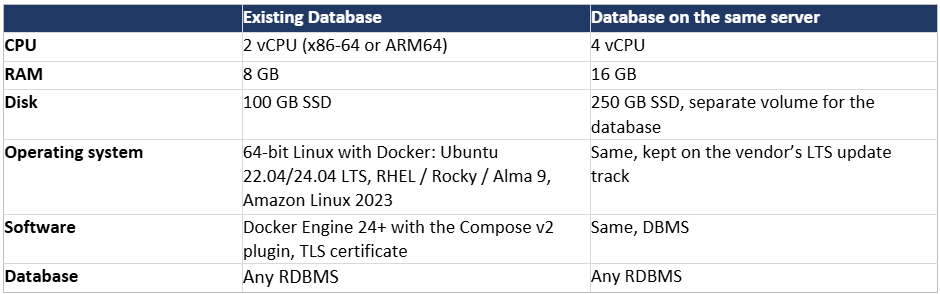
SaaS

System configuration and administration
Context: Setup form under System Configuration.
Key Components & Elements:
Top Navigation Bar:
- Users: Switches to user management and account creation.
- Financial Institutions: Active section tab highlighting financial entity settings.
- Data Lots: Navigates to unit and data lot configuration.
- General Configuration: Opens system parameters and precision controls.
- Licence: Module where the Fintecor licence file is installed.
- Reporting Set Updates: module where signed Fintecor reporting set packages are previewed and imported.
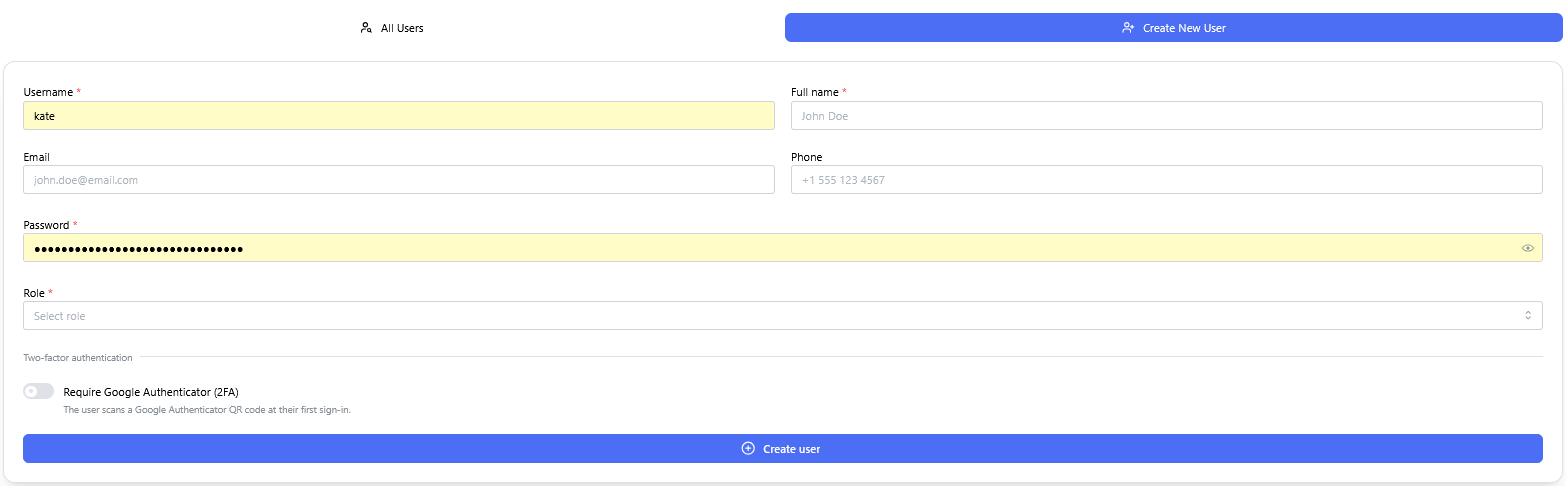
User Access & Role-Based Permission
There are two roles possible, Admin and User.
Context: Interface for provisioning new user accounts and assigning permissions within the system.
-
Key Components & Elements:
-
User Detail Input Fields: Captures essential user profile information, including username, full name, email address, phone number, and account password.
-
Role Assignment Controls: Configures access privileges with options to assign either Admin or User system roles.
-
Security & Authentication Options: Includes a toggle/checkbox option to enforce Google Authenticator (2FA) multi-factor authentication upon login.
-
Financial institution configuration
Context: Interface within the System Configuration module where Financial institutions are defined and created.
Key Components & Elements:
Context: Administrative overview table displaying configured financial institution records, their regulatory parameters, and row-level management actions.
Key Components & Elements:

Data lots configuration
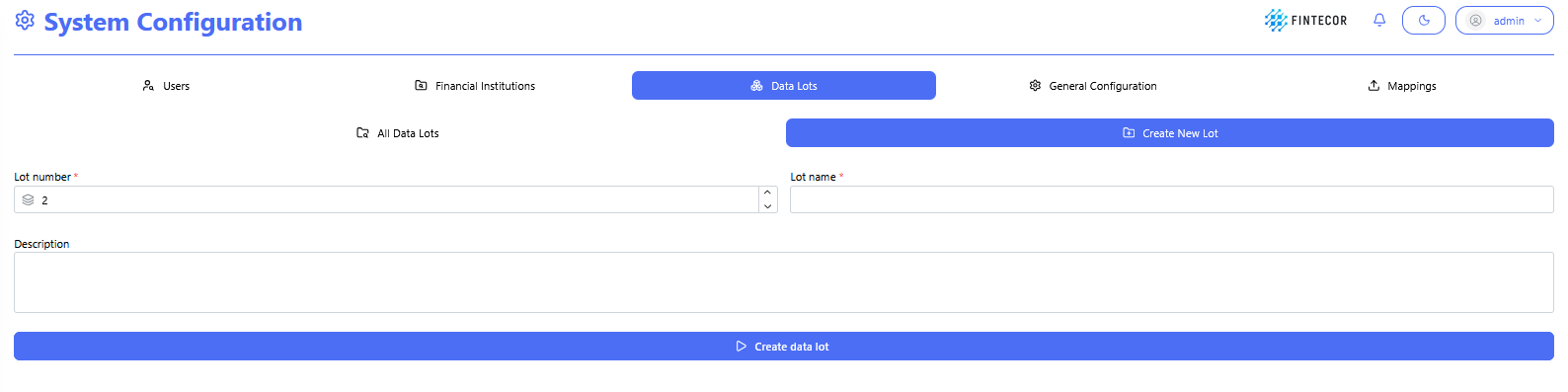
Context: Interface within the System Configuration module where new Data Lots are defined and created.
Key Components & Elements:
-
-
-
-
All Data Lots: Button/tab to return to the list view of all existing data lots.
-
Create New Lot: Active sub-tab displaying the new data lot setup form.
-
-
Input Fields:
-
*Lot number : Numeric input/spinner control to assign a unique numerical sequence ID for the lot.
-
*Lot name : Text input control to give the data lot a descriptive title.
-
Description: Multi-line text area to specify details or notes about the data unit.
-
-
Primary Action Button:
-
Create data lot: Submits the parameters to create and store the new data lots.
-
-
-
General Configuration
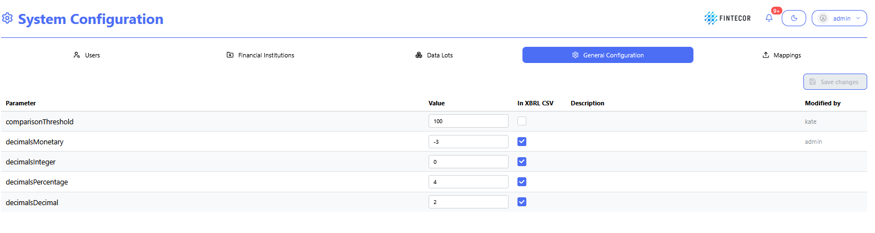
Context: general configuration workspace to define used parameter values.
Key Components & Elements:
General Configuration is highlighted.
Action Controls: Features a "Save changes" button in the upper-right area to apply updated parameter configurations.
System Logs & Revision History
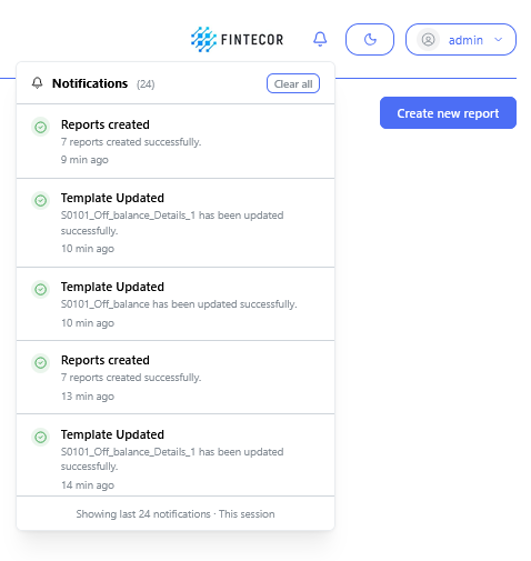
Context: Visual representation of system activity surfaced through the notification interface and execution status indicators.
-
Key Components & Elements:
-
Activity & Audit Stream: Displays recorded events including configuration changes, user logins, and system operations.
-
Background Job Status: Shows in-progress indicators and status updates for asynchronous background processes and scheduled tasks.
-
Notification Center Interface: Illustrates how server-side logs and operational events are presented within the application UI.
- Most system logs are kept server side not UI side.
-
Licence
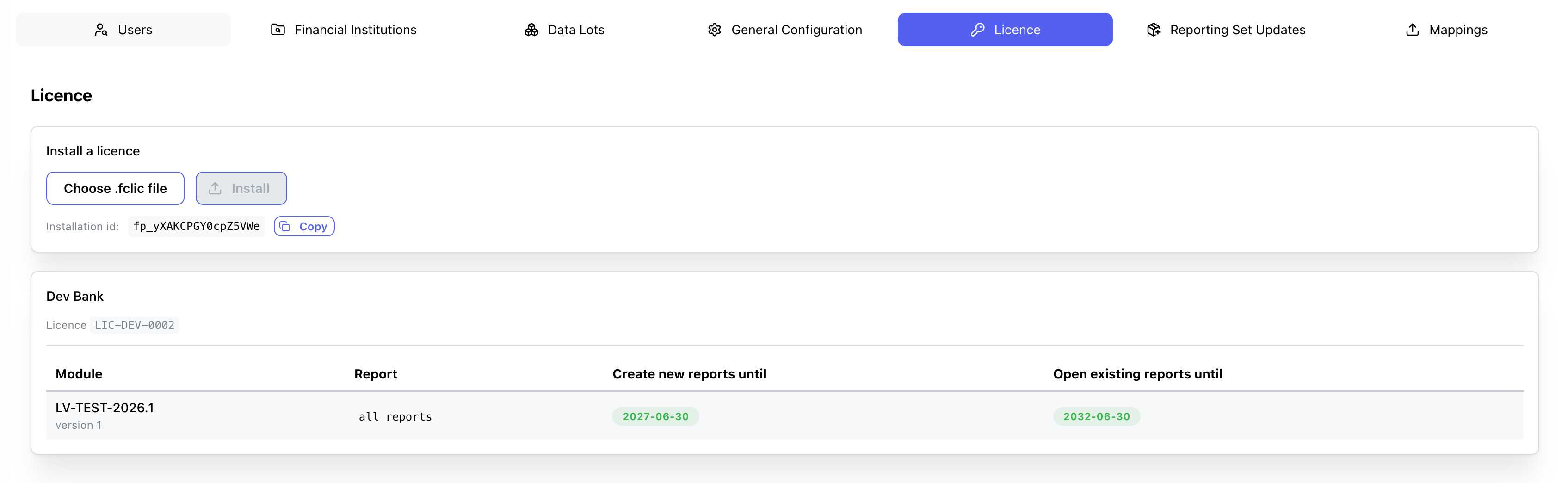
Interface within the System Configuration module where the Fintecor licence file is installed and the reports it permits are listed.
Key Components & Elements:
Install a licence
- Choose .fclic file: Opens a file picker for the licence file supplied by Fintecor. Accepts `.fclic` and `.txt`. Displays the selected file name once chosen.
- Install: Uploads and installs the selected licence file. Disabled until a file is selected.
- Installation id: Read-only identifier of this installation, quoted to Fintecor when requesting a licence. Each installation has its own value.
- Copy: Copies the installation id to the clipboard.
Licence summary (shown once a licence is installed)
- Customer name: The organisation the licence was issued to.
- Licence: The licence identifier issued by Fintecor.
- Create new reports until:** Date after which new reports can no longer be created from this module.
- Open existing reports until:** Date after which existing reports can no longer be opened or exported. Shows `No end date` when the grant has no limit.
Reporting Set Updates
Interface within the System Configuration module where signed Fintecor reporting set packages are previewed and imported. The package is checked and previewed first; nothing changes until the plan is confirmed.

Package Selection
Choose .fcpkg package: Opens a file picker for the package supplied by Fintecor. Accepts `.fcpkg` and `.zip`. The preview runs automatically once a file is selected.
Re-check: Re-runs the preview for the selected package without importing anything.
Datasets administration and data load
Datasets & Input Sources
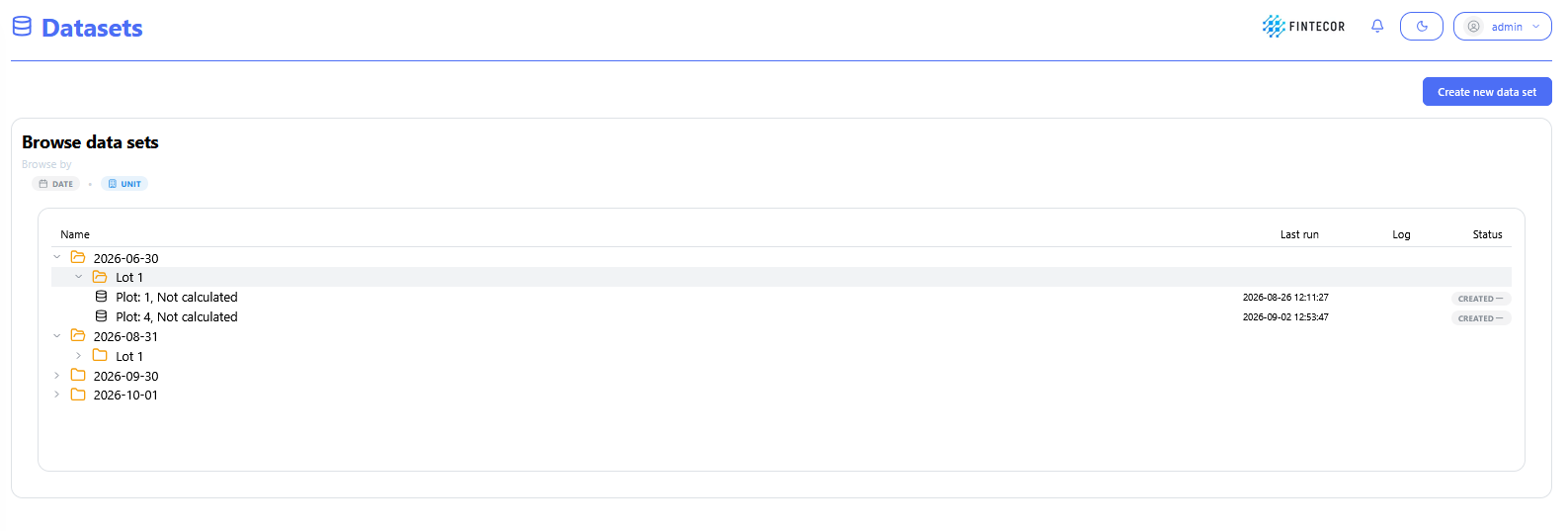
Context: Main management interface showing the structured data hierarchy arranged by reporting period and assigned unit.
-
Key Components & Elements:
-
Hierarchical Tree View: Categorized drill-down structured by date and unit (e.g., 2026-06-30 → Lot 1 → Plot 1/Plot 4), including last run timestamps and status.
-
Execution Metadata: Status indicators and last run timestamps displaying recent processing state.
-
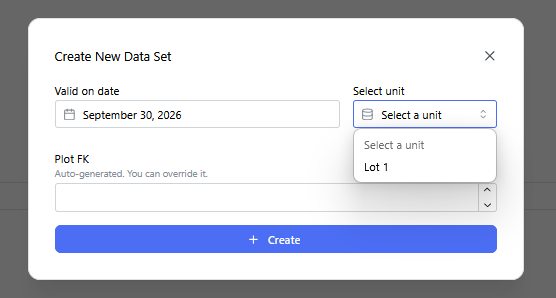
Context: Modal dialog prompt triggered when adding a new dataset to the platform.
-
Key Components & Elements:
- Date: date of data set. Should be equal to valid_on used in data set.
-
Unit Selection Dropdown: An expanded "Select unit" menu populated with available units/lots. Should be equal to lot_type_fk used in data set.
-
Plot FK: optional field to define created result set unique identifier. By default generated as incremental value.
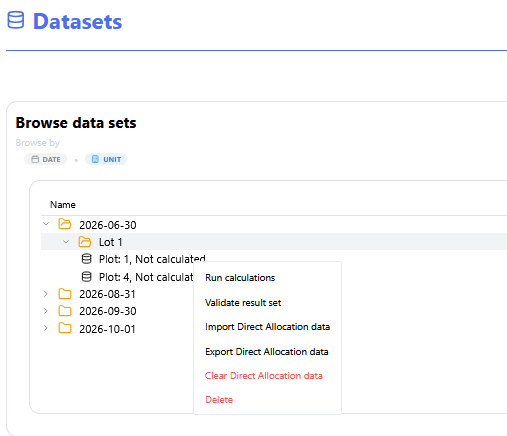
- Operations with datasets:
- Run calculations - functionality in process. Used for E2E solution.
- Validate result set - functionality in process. Used for E2E solution.
- Import Direct Allocation data - LastMile solution. Loading pre-calculated result data in Excel or csv format.
- Export Direct Allocation data - download existing direct allocation data for specific plot_fk from result_data_direct table. Download Excel template for result_data_direct data.
- Clear Direct Allocation data - delete existing data from result_data_direct table for specified plot_fk.
- Delete - delete all result data for specified plot_fk.
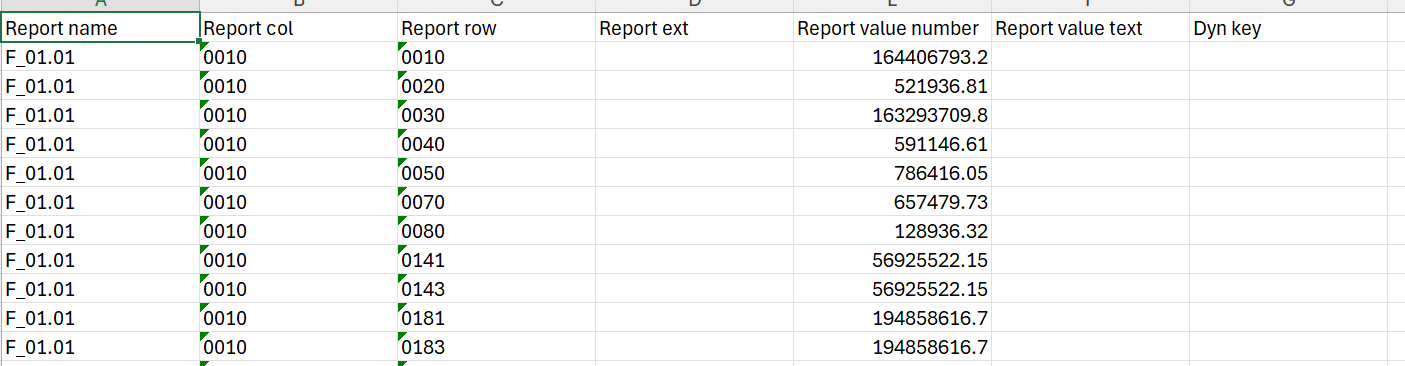
- For LastMile solution data can be loeaded directly to the table result_data_direct only for previously created Dataset.
- Excel file template for direct allocation data load:
User Interface Guide and Navigation
User Guide
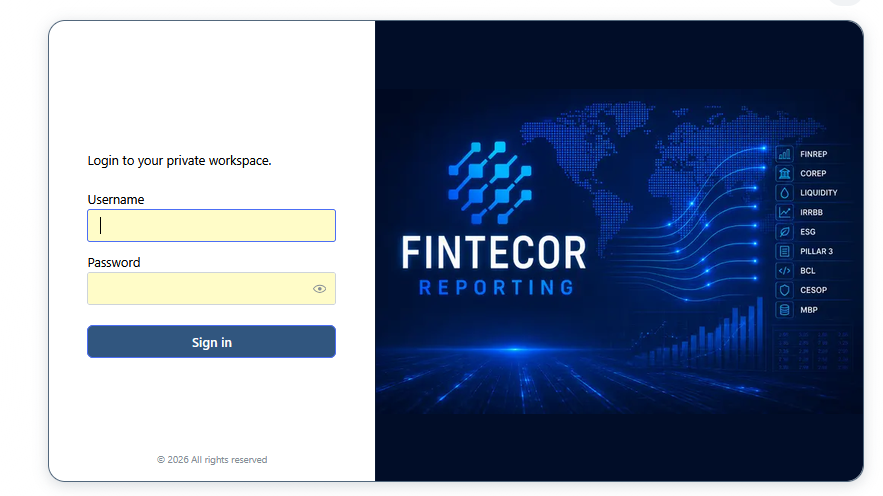
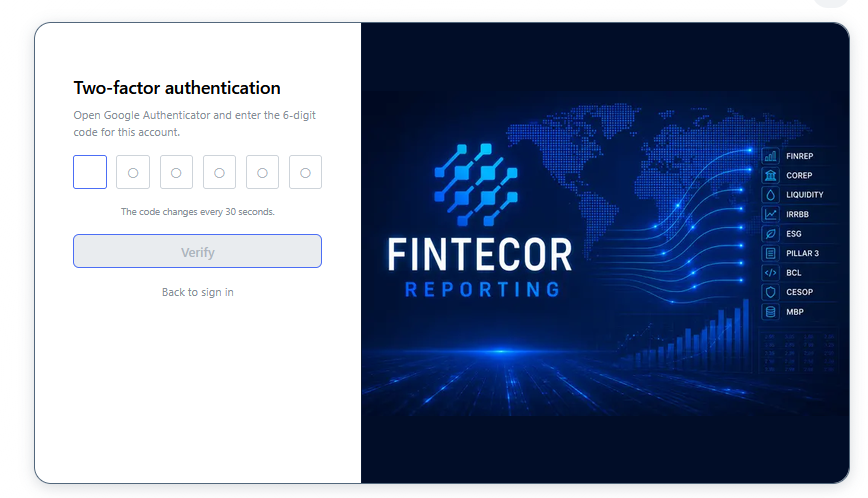
Login page and Two-factor authetication
Context: Two-step login process for authenticating user access to the Fintecor Reporting platform.
Key Components & Elements:
-
Primary Login Card: Form inputs for Username and Password, an environment/tenant selector, and the primary session submit button.
-
Secondary MFA Verification: One-time passcode (OTP) input control, step-by-step security prompt, and passcode retry/resend options.


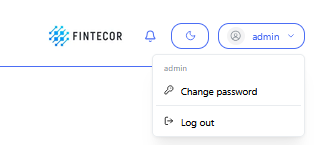
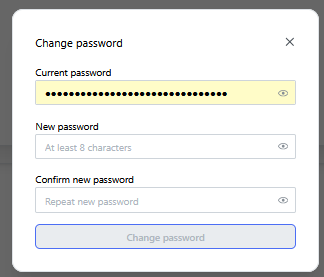
Logout and Password Change
- Logout and password change for user:
Navigation structure
Context: A full-height view of the primary left-hand navigation sidebar menu within the reporting application.
- Key Components & Elements:
-
Hierarchical Tree Structure: Displays parent and nested menu items organized by system functional areas, including System Configuration, Datasets, and Reports.
-
Active Selection State: Highlights the currently active navigation item or folder path within the interface tree.
-
Report Configuration is not available
-
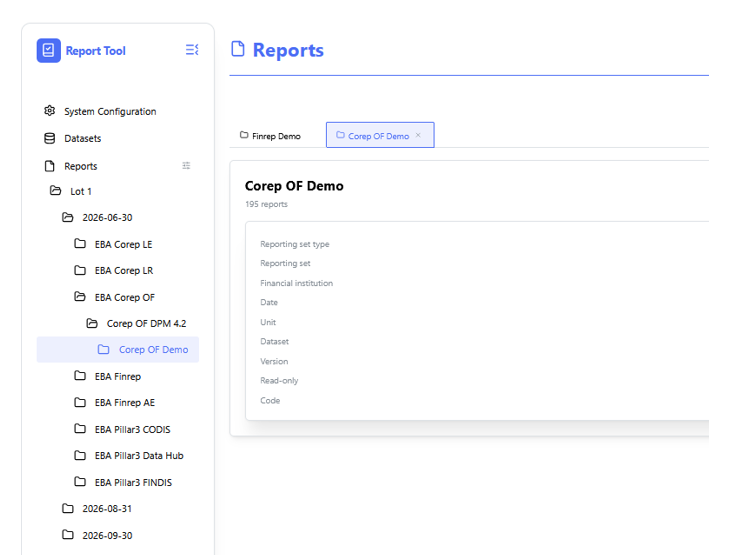
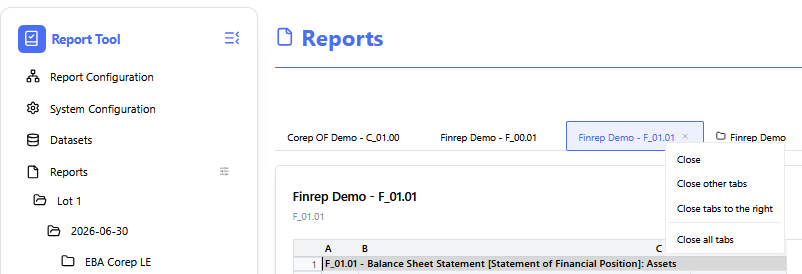
- Closing all opened tabs:
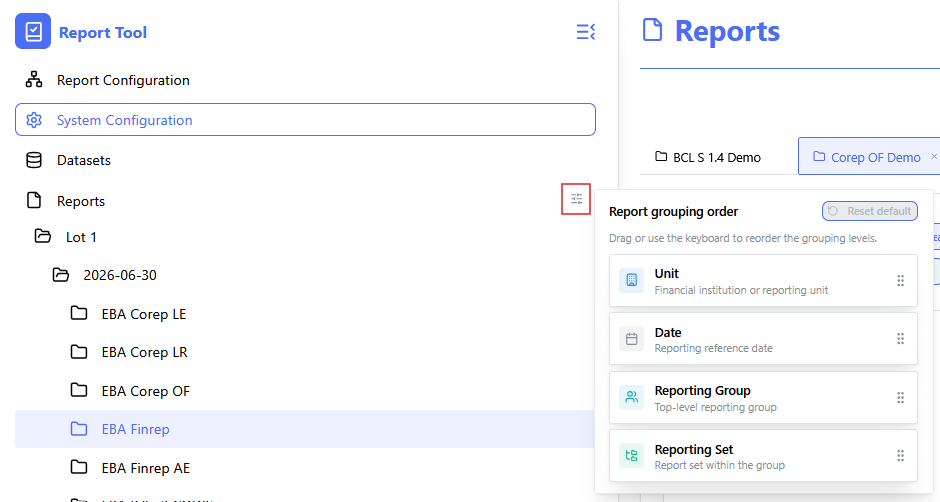
- Reporting group ordering
In order to change ordering in Reports part click on the icon.
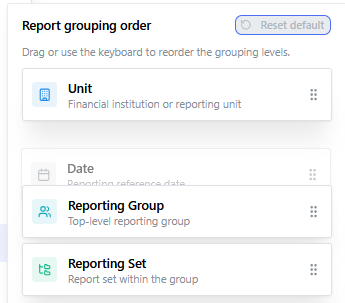
Drag and drop levels of ordering.
Night Mode
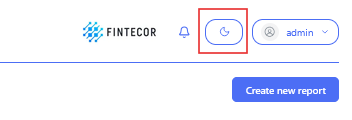
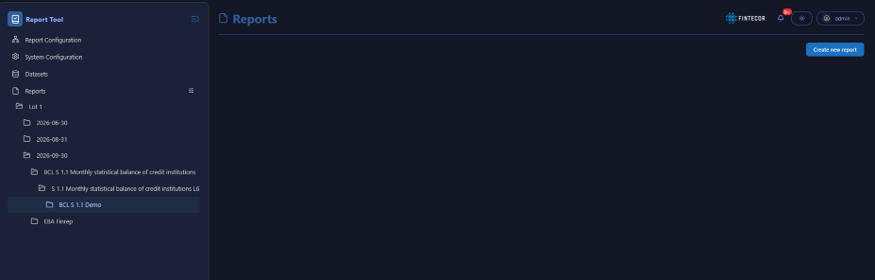
Context: Day and Night mode switch.
-
Key Components & Elements:
-
Theme Switcher: Displays the upper right-hand corner control button used to toggle between light and dark visual themes.
-
Operations with Reports
Create New Report
Key Components & Elements:
-
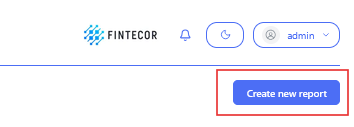
Top Action Trigger:
-
Create new report: Primary blue button in the upper right used to instantiate a new reporting set or template package.
-
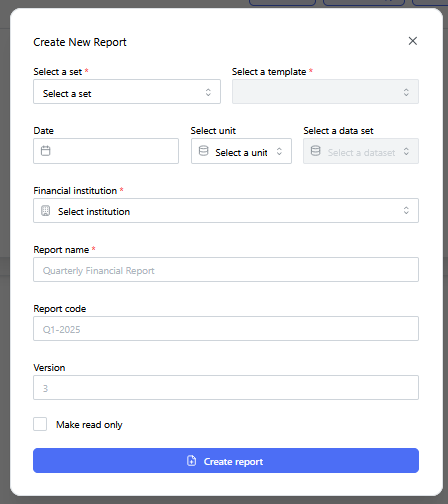
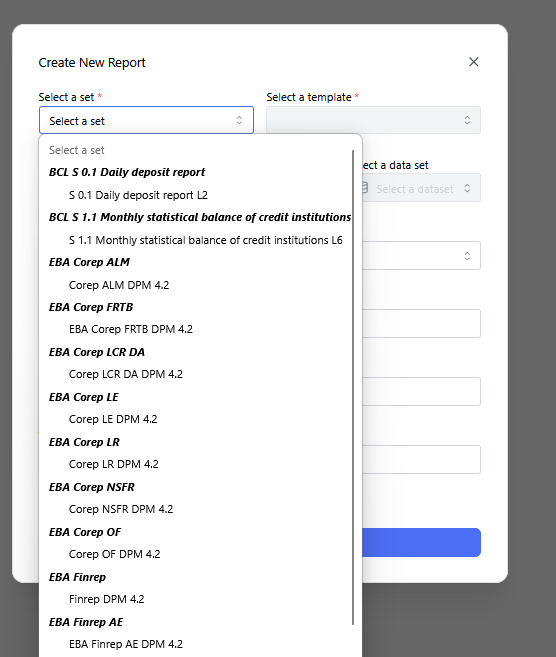
Context: The "Create New Report" dialog modal with the "Select a set" drop-down menu expanded.
-
Key Components & Elements:
-
Displays available regulatory frameworks and reporting sets (such as BCL, EBA COREP, EBA FINREP, etc.).
-
Allows users to select the foundational regulatory template structure for building new report packages.
-
-
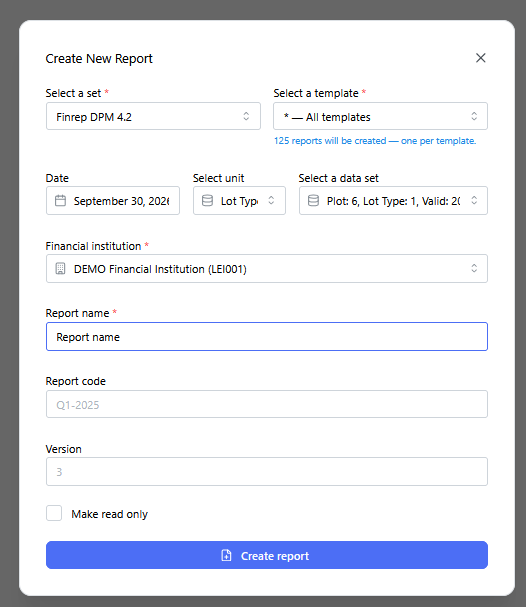
Context: The "Create New Report" dialog modal fully populated before triggering generation.
-
Key Components & Elements:
-
Configuration Fields: Shows filled inputs including template scope ("All templates"), reporting date, unit scale, dataset selection, financial institution, report name, unique code, and version identifier.
-
Submit Action: Primary action button to execute report populating and compilation.
-
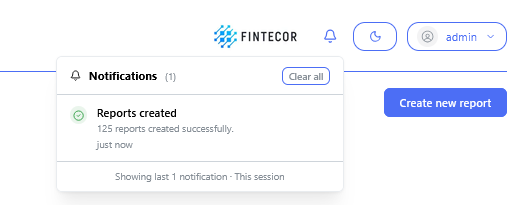
Context: Interface toast notification / status banner following batch creation.
-
Key Components & Elements:
-
Confirmation Banner: Displays a green success indicator with the system message: "125 reports created successfully".
-
Operations with Report
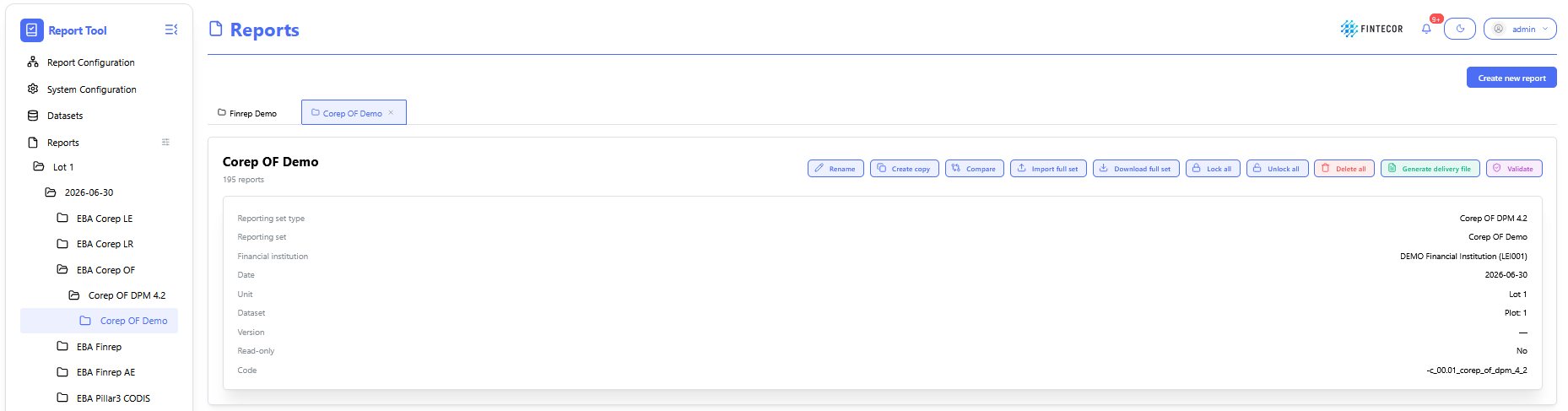
Context: reporting workspace showing a list of possible actions for selected reporting set.
-
Toolbar Action Controls:
- Rename: change name of selected reporting set.
-
Create copy: create copy of selected reporting set
-
Compare: compare two selected reporting sets.
- Import full set: import data from Excel to all templates.
- Export full set: Export reporting set to one Excel files, including all templates. Can be used as template for filling and importing data to reporting set.
-
Lock All/ Unlock All: Toggles the report between read-only mode and active editing state for all included templates.
-
Delete all: delete full reporting set with all templates.
- Generate delivery file: generates delivery file for selected reporting set. See "Generate Delivery File".
- Validate: validate reporting set against all registered validation rules (EBA, ECB, local ruels etc.) See "Validation Engine & Cross-Report Reconciliation"

Context: Drill-down view for investigating a specific error or mismatch flagged by the reconciliation engine.
-
Key Components & Elements:
-
Root-Cause Analysis Panel: Displays underlying transactions causing the variance.
-
Resolution Options: Tools to acknowledge warnings, override exceptions with justification notes, or route issues to data stewards.
-
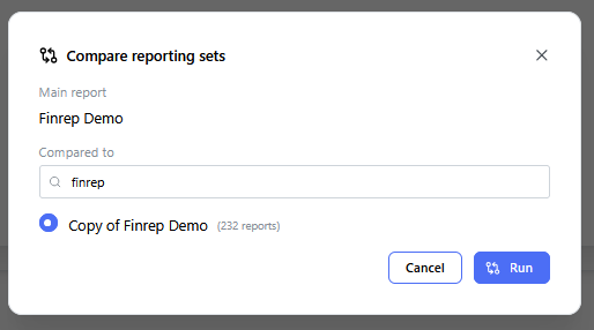
Context: Audit log tracking historical validation job executions.
-
Key Components & Elements:
-
Execution Timestamps: Shows when validation suites were triggered, who ran them, and their success states.
-
Batch Controls: Options to re-run specific validation suites or export execution logs for compliance audits.
-
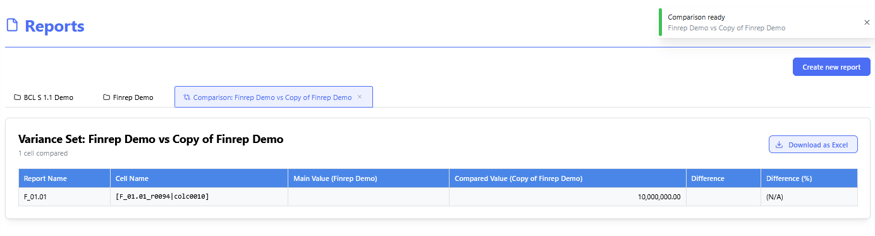
Operations with Template
Context: reporting workspace showing a list of possible actions for selected template.
-
Toolbar Action Controls:
- Freeze headings: Pin/unpin row and column header labels so they remain visible while scrolling through large data tables.
- Cell size: Adjust row heights, column widths, and grid density for optimal table alignment.
- Read -only: Toggles the template between read-only mode and active editing state.
- Save changes: Persists manual entries, updates, or overrides made within the report grid.
-
Reload data: Re-fetches current values directly from the backend result dataset overwriting all manual corrections.
-
Reload with corrections: Re-fetches current values directly from the backend result dataset keeping all manual corrections.
- Export/Import: export template as separate Excel file/import template data from Excel as separate Excel file.
- Add row: add row for reports with dynamic rows.
- Delete rows: delete rows for reports with dynamic rows.
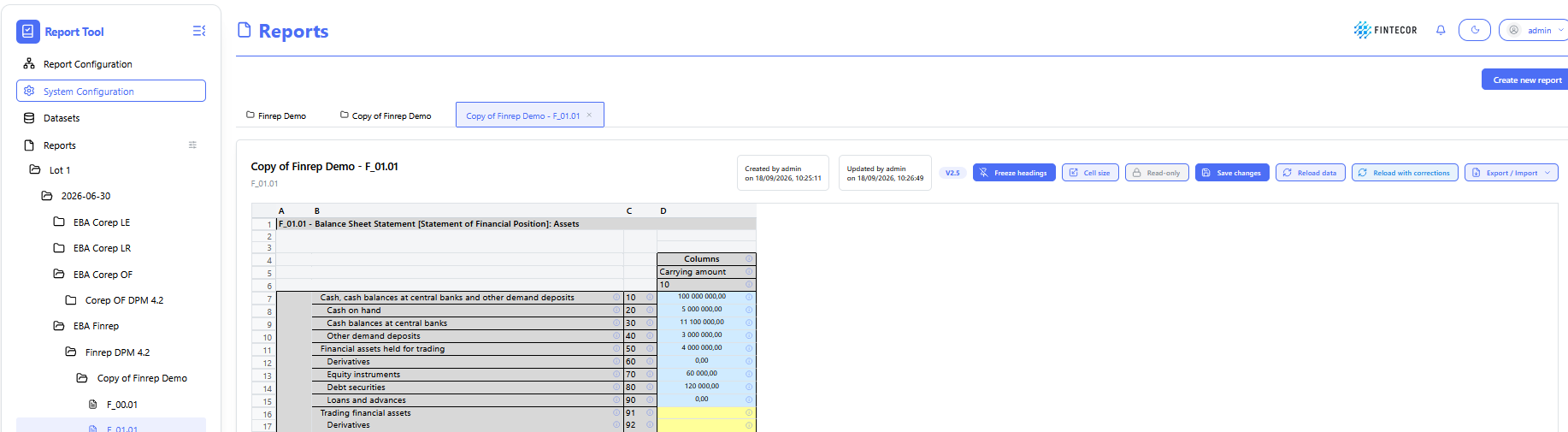

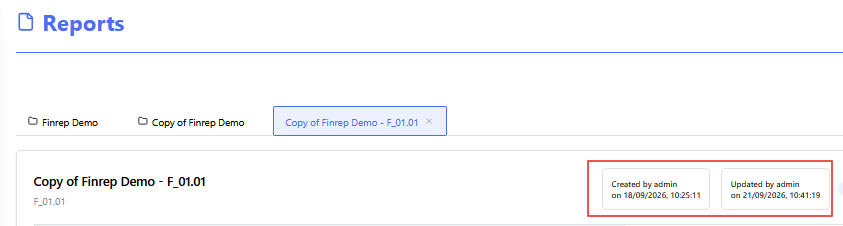
Context: Illustrates template change log:
Context: Illustrates "Save changes" functionality
-
Key Components & Elements:
-
When manual correction done in template (manually or using Import function), Save change button should be used to save corrections!
-
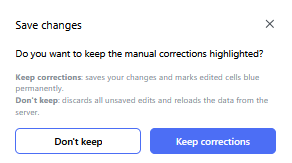
-
- Don't keep - don't keep manual corrections highlighting. Correction will be saved, but not highlighted.
- Keep corrections - all manual correction will be saves and highlighted with blue color
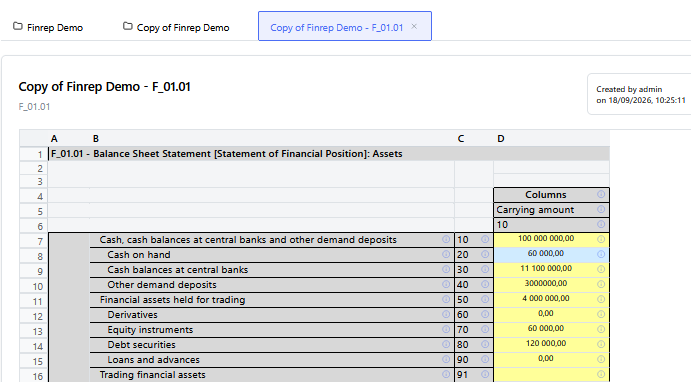
.
Data Breakdown & Lineage Inspection
Context: cell information page.
To open cells information page click on "!" for the selected cell.
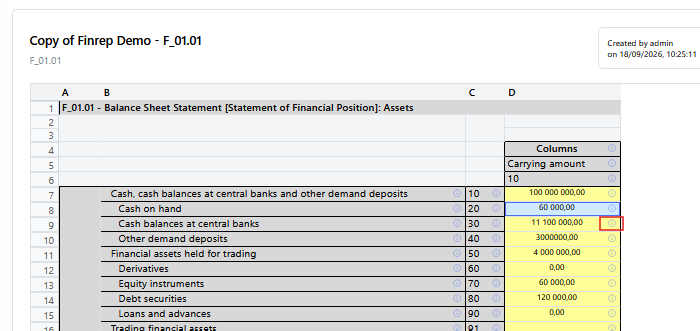
Context: A detailed popup window triggered when inspecting a specific report cell or line item.
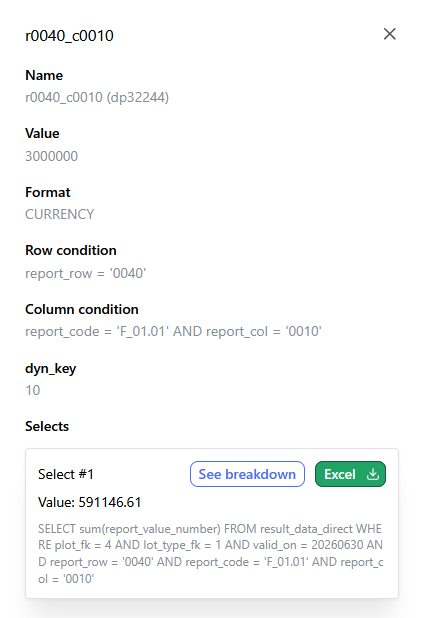
-
Key Components & Elements:
-
Header Details: Displays key metrics such as cell coordinates/identifiers, calculated numeric values, formatting types, and target row/column conditions.
-
SQL Queries Section: Outlines the underlying database queries executing against system data tables.
-
Action Options: Includes action buttons such as "See breakdown" (to inspect underlying record details) and "Export to Excel".
-
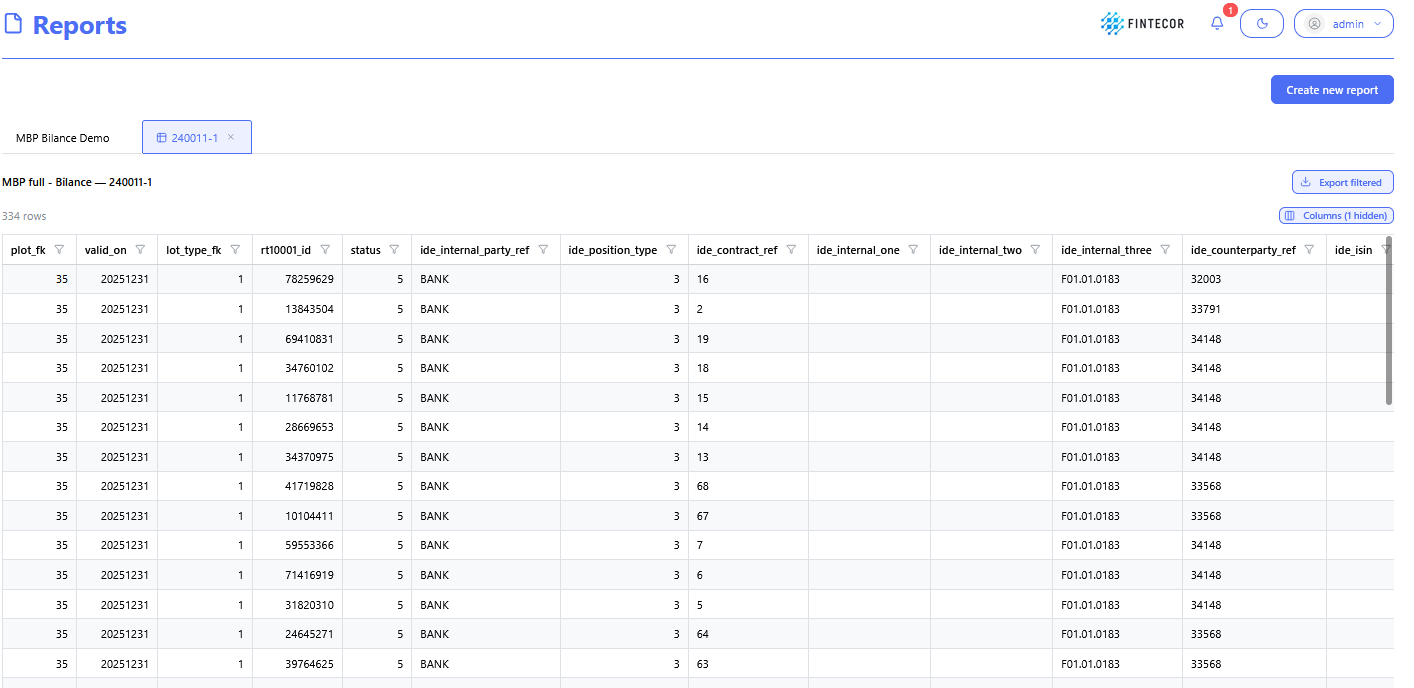
Context: The granular drill-down view displayed after clicking "See breakdown".
-
Key Components & Elements:
-
Data Table/Grid: Shows the individual source records that aggregate into the parent report cell's total value.
-
Columns: Displays source transaction attributes such as record IDs, source system flags, posting dates, amounts, and account codes.
-
Filtering & Pagination Controls: Interfaces for filtering specific line items or sorting source records.
-
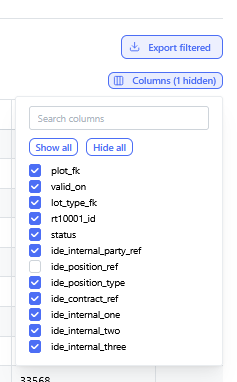
Context: A direct inspection view focused on data provenance and lineage flow.
-
Key Components & Elements:
-
Lineage Diagram / Mapping Structure: Visual representation tracing data from raw input tables down to calculated reporting output cells.
-
SQL Preview Panel: Highlights code syntax and condition rules driving cross-table reconciliations.

-
Validation Engine & Cross-Report Reconciliation
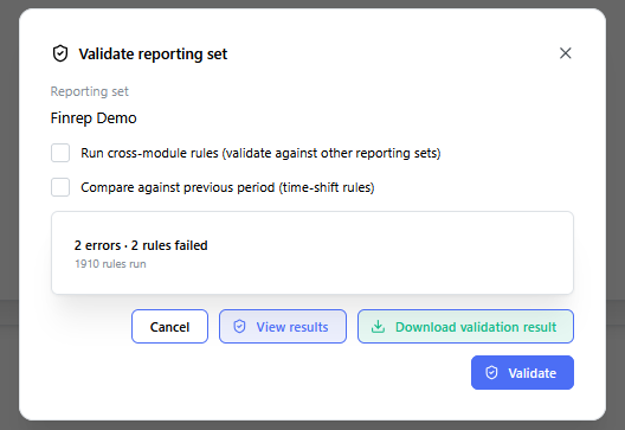
To run validation got to Reporting Set information page. See page "Operation with Reporting set". Click "Validate".
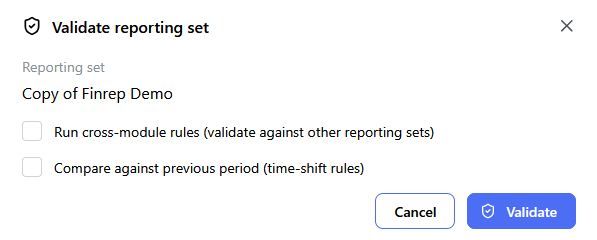
Context: validation completed window.
-
Key Components & Elements:
-
View results: view validation results in UI.
-
Download validation results: download validation results as Excel file.
-
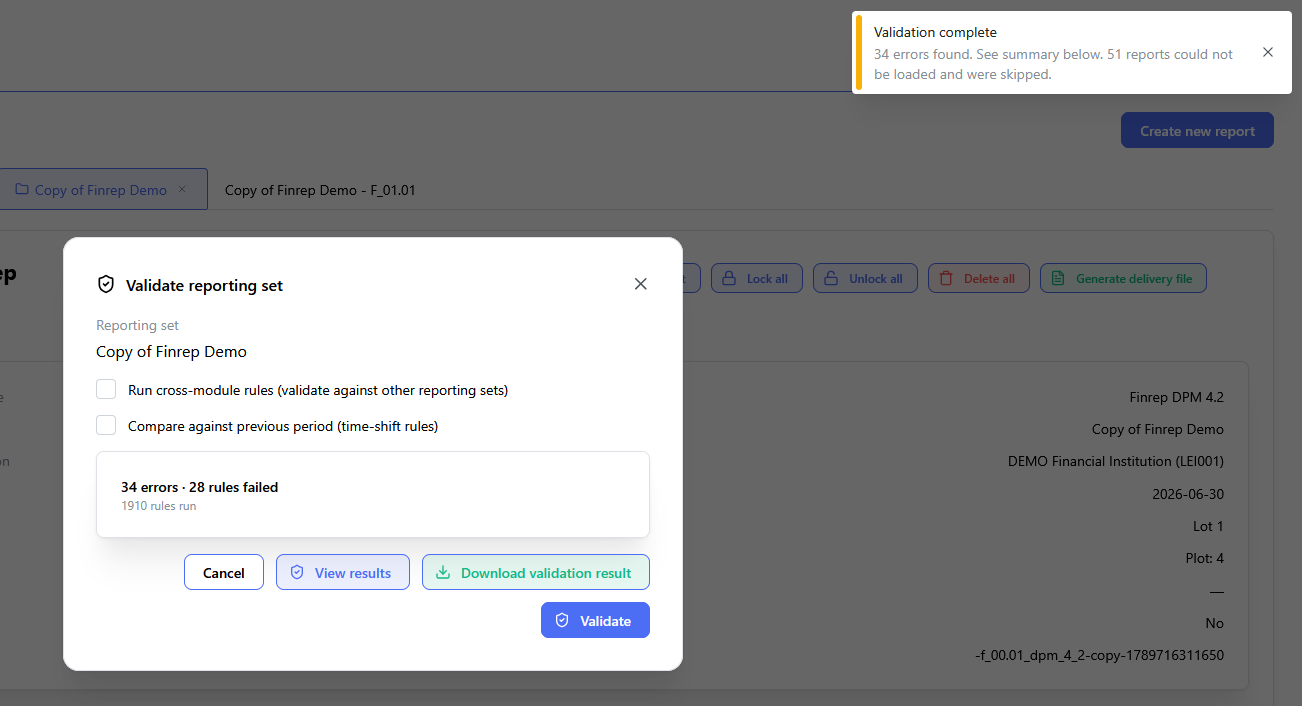
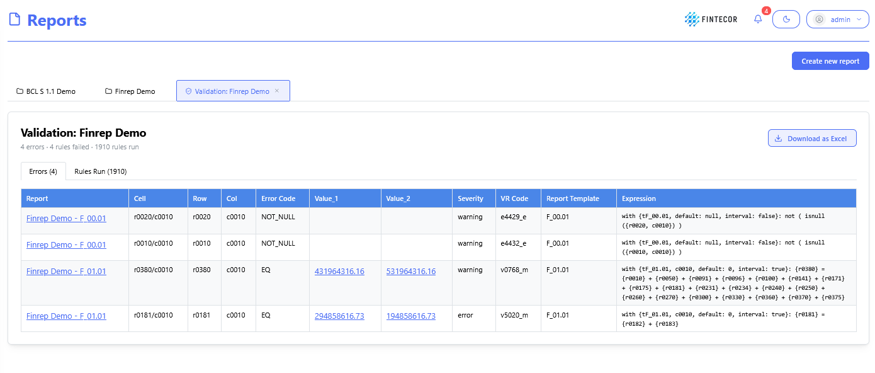
Context: The main landing view for the validation engine module.
-
Key Components & Elements:
- Errors: validation rules list, which failed.
-
Rules Run: High-level counts of total rules checked, passed validations, failed checks, and active warnings.
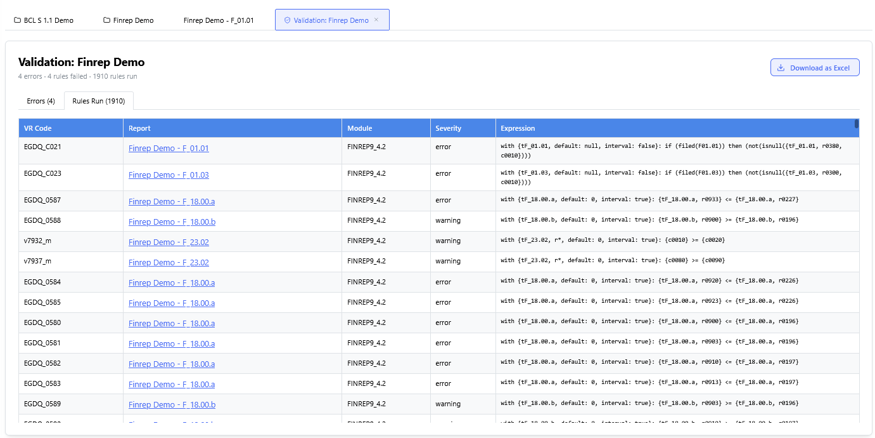
Context: Interface for creating or editing specific cross-report validation logic.
-
Key Components & Elements:
-
Rule Parameters: Fields defining rule IDs, descriptions, source reports/cells, and target comparison cells.
-
Formula & Tolerance Builders: Settings allowing tolerance thresholds or exact mathematical matching (
A == B).
-
Context: A matrix grid comparing corresponding line items across different regulatory or financial reporting statements.
-
Key Components & Elements:
-
Comparison Columns: Side-by-side values from separate reports (e.g., Report A vs. Report B).
-
Variance Indicators: Highlights data discrepancies, highlighting differences in red or yellow depending on predefined thresholds.
-
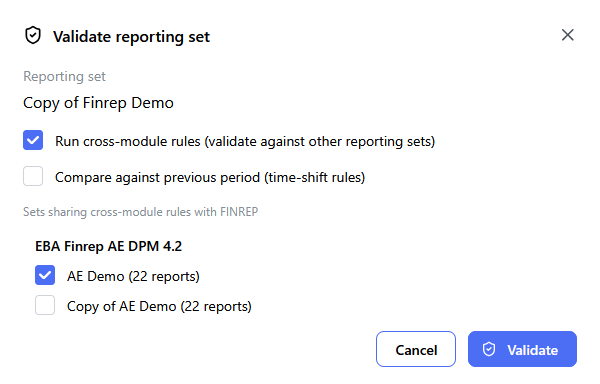
Cross-Report Reconciliation
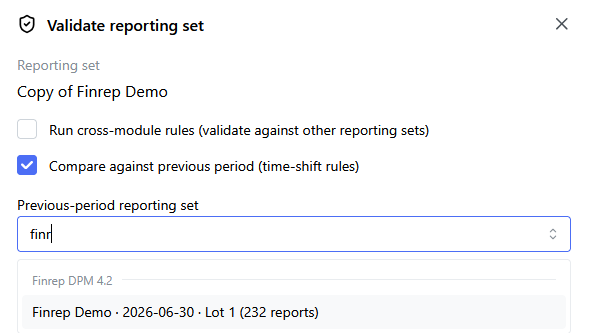
To run Cross-Report validation rules select "Run cross-module rules (validate against other reporting sets)" and select for cross module reconciliation. Standard validation will be run including cross-module validation rules.
Compare against previous period (time-shift rules)
To run Cross-Report validation for Time-shift rules select Compare against previous period (time-shift rules)" and select previous reporting period Reporting set.
Generate Delivery File
- Go to Reporting Set information page and select "Generate delivery file"
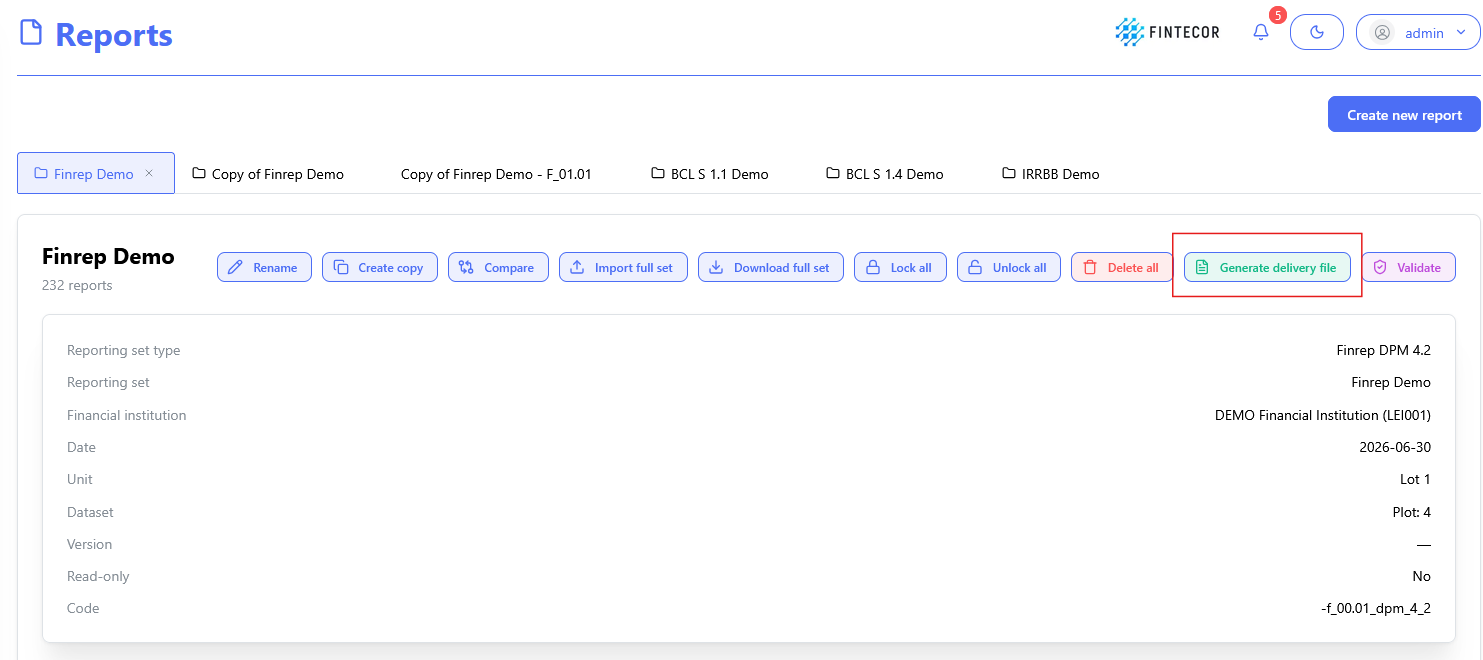
*For EBA reports function "Generate delivery file" could be unavailable in case filling indicators template for selected Report not fulfilled. Go to filling indicators template, fill filling indicators, save corrections and return to Reporting set information page.
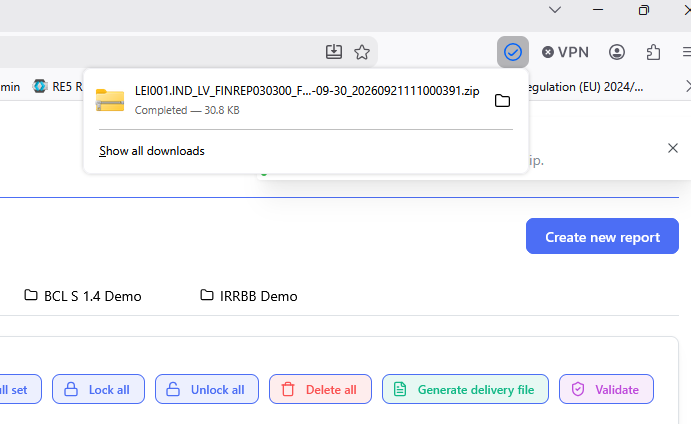
- When delivery filed generated, got to you Download folder.
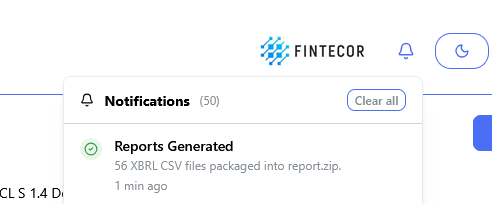
Institution and reporting level data taken from "Financial institution configuration"