Users and Access Control
Understanding Users, Roles, and Permissions
A FintEdge user is an account that stores the credentials, personal details, assigned role, and permission set interacting with the system.
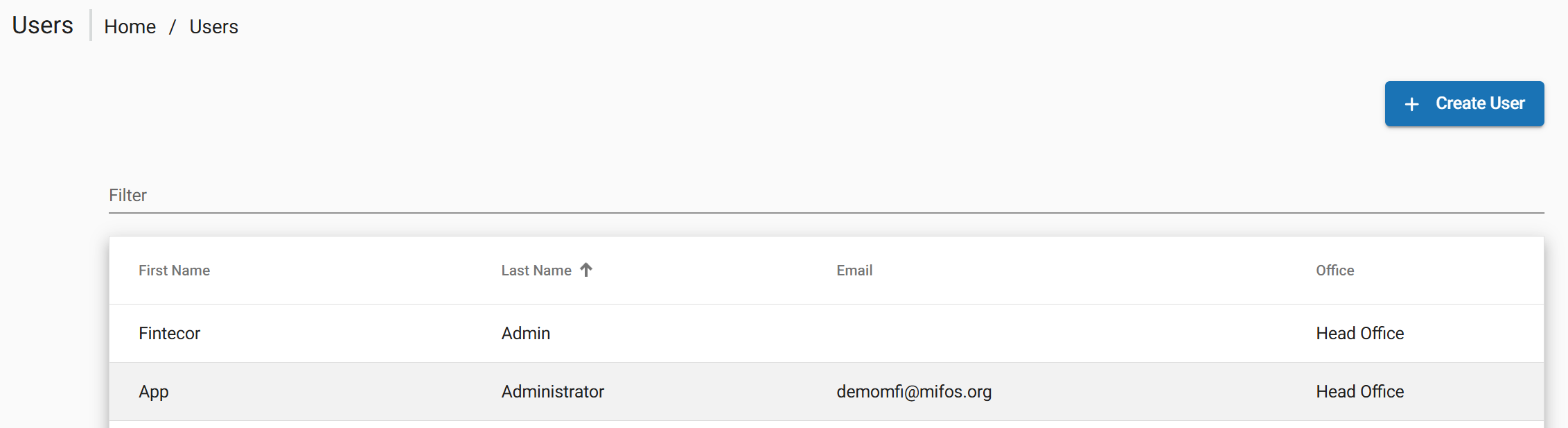
The complete list of users can be found by navigating to Admin > Users.
Manage Roles and Permissions are the fundamental unit of access control in FintEdge accessed by:
Admin > System > Manage Roles and Permission
Creating a User
New user can be created from the top navigation bar:
• Go to Admin> Users and choose Create User.
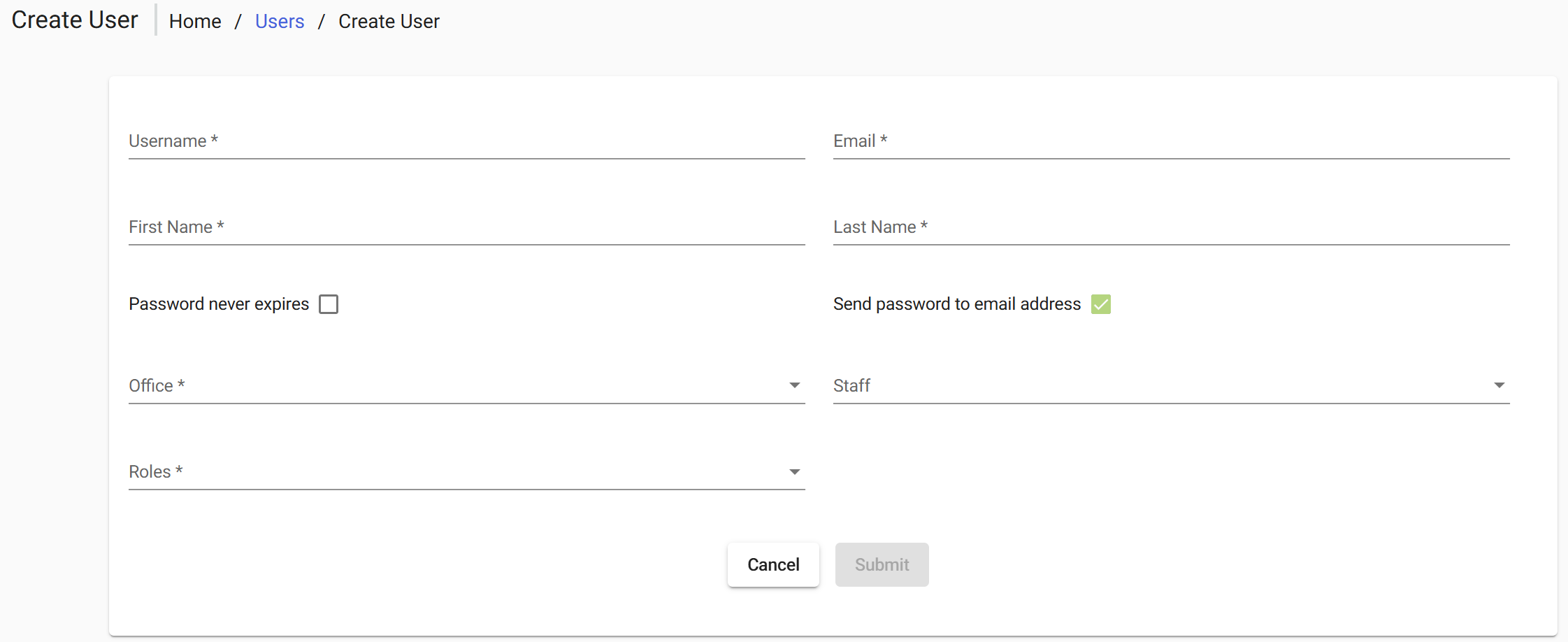
In general section complete all required fields in the dialog and select Submit to confirm.
Editing and Deleting User Accounts
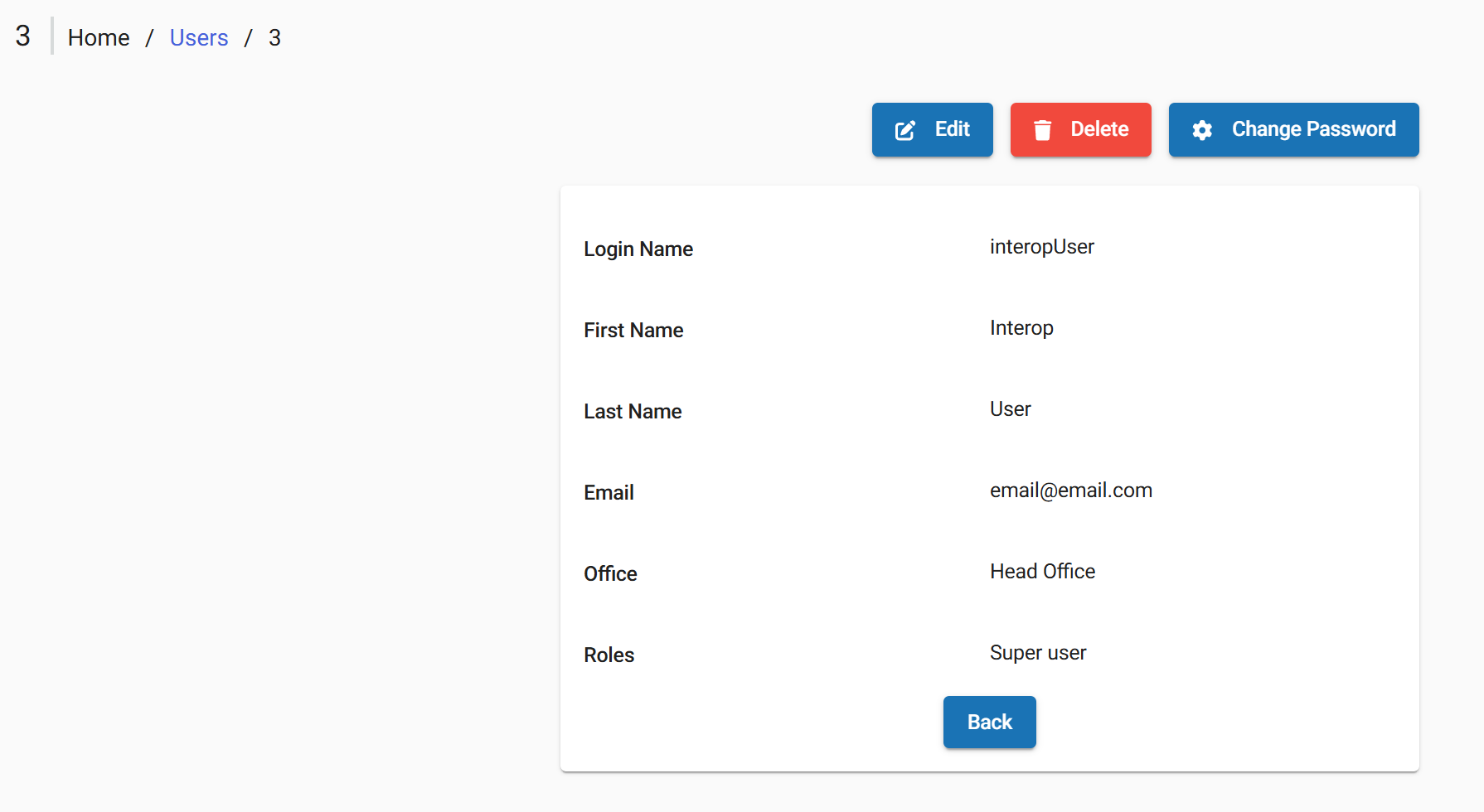
After user created the following actions are available via buttons at the top of the screen:
- Back Returns the user to the previous screen (e.g., user list)
- Edit Opens the user profile in edit mode to modify user details
- Delete Removes the user from the system
- Change Password Allows setting or resetting the user’s password
Manage Roles
Creating a Role
New role can be created from the top navigation bar where all existing roles are available:
- Admin> System > Manage Roles and Permissions
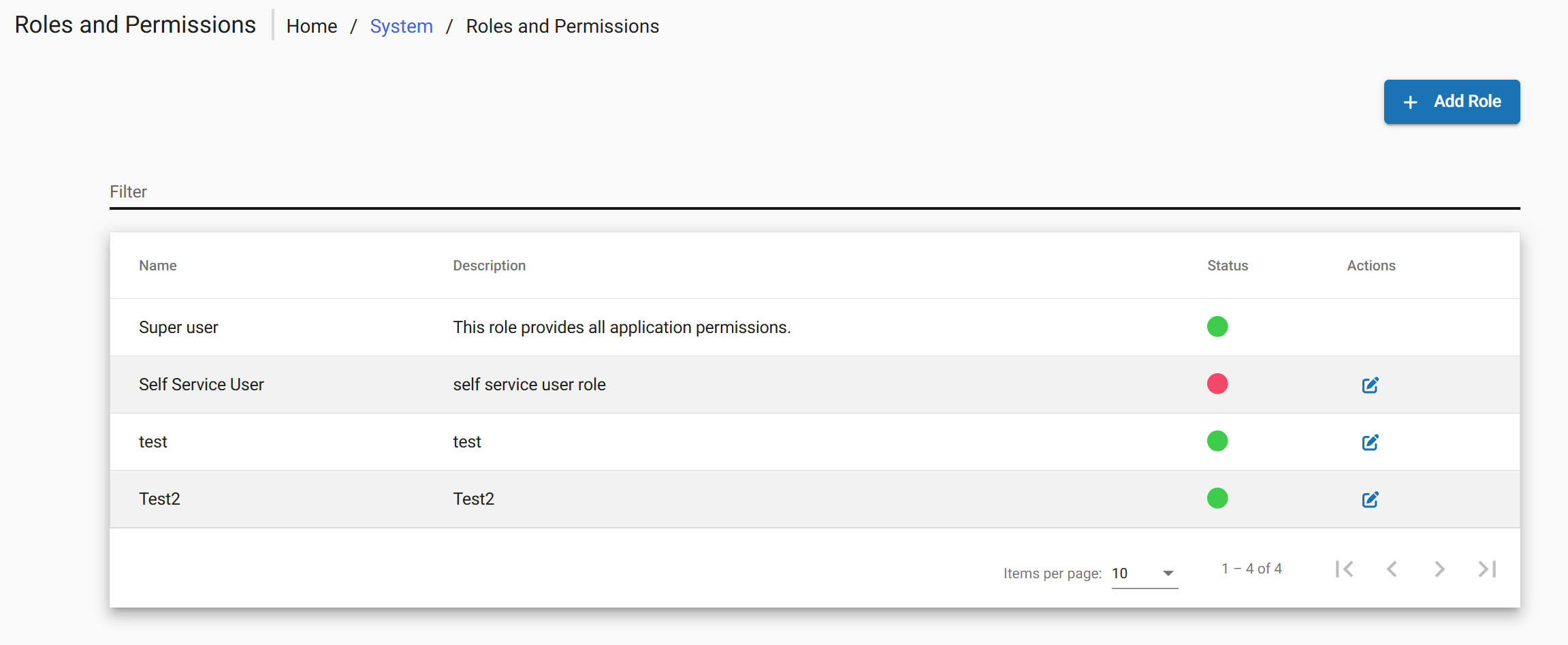
- Choose Add Role.
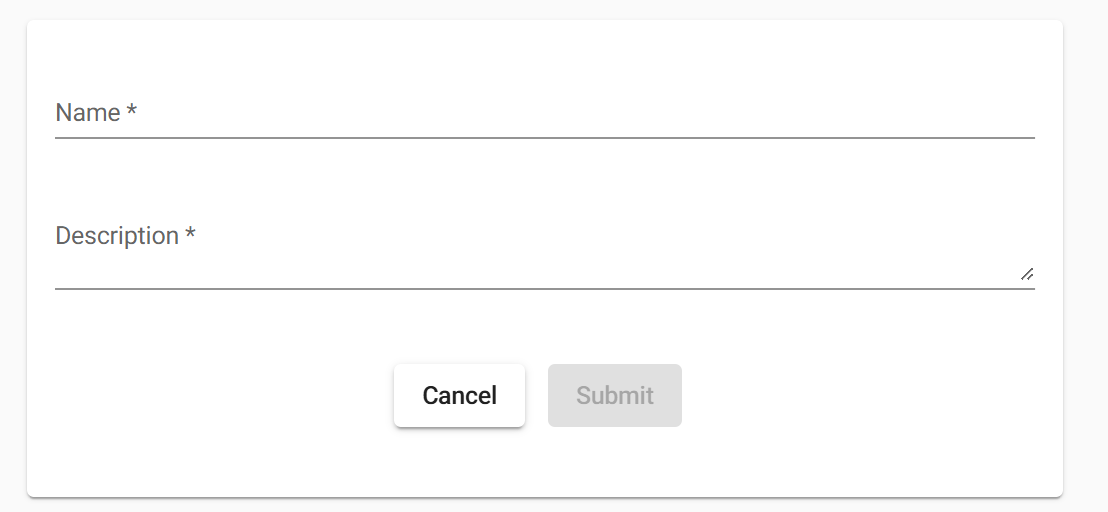
Editing and Deleting a Role
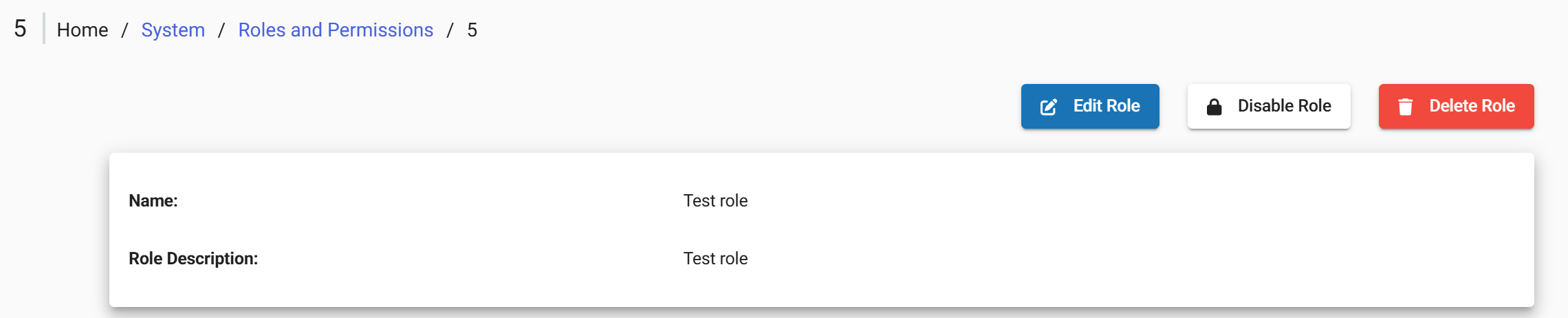
After role created the following actions are available via buttons at the top of the screen:
- Edit Role Opens the user profile in edit mode to modify user details
- Disable/Enable Role Controls whether a role is active and can be assigned or used within the system
- Delete Role Removes the role from the system
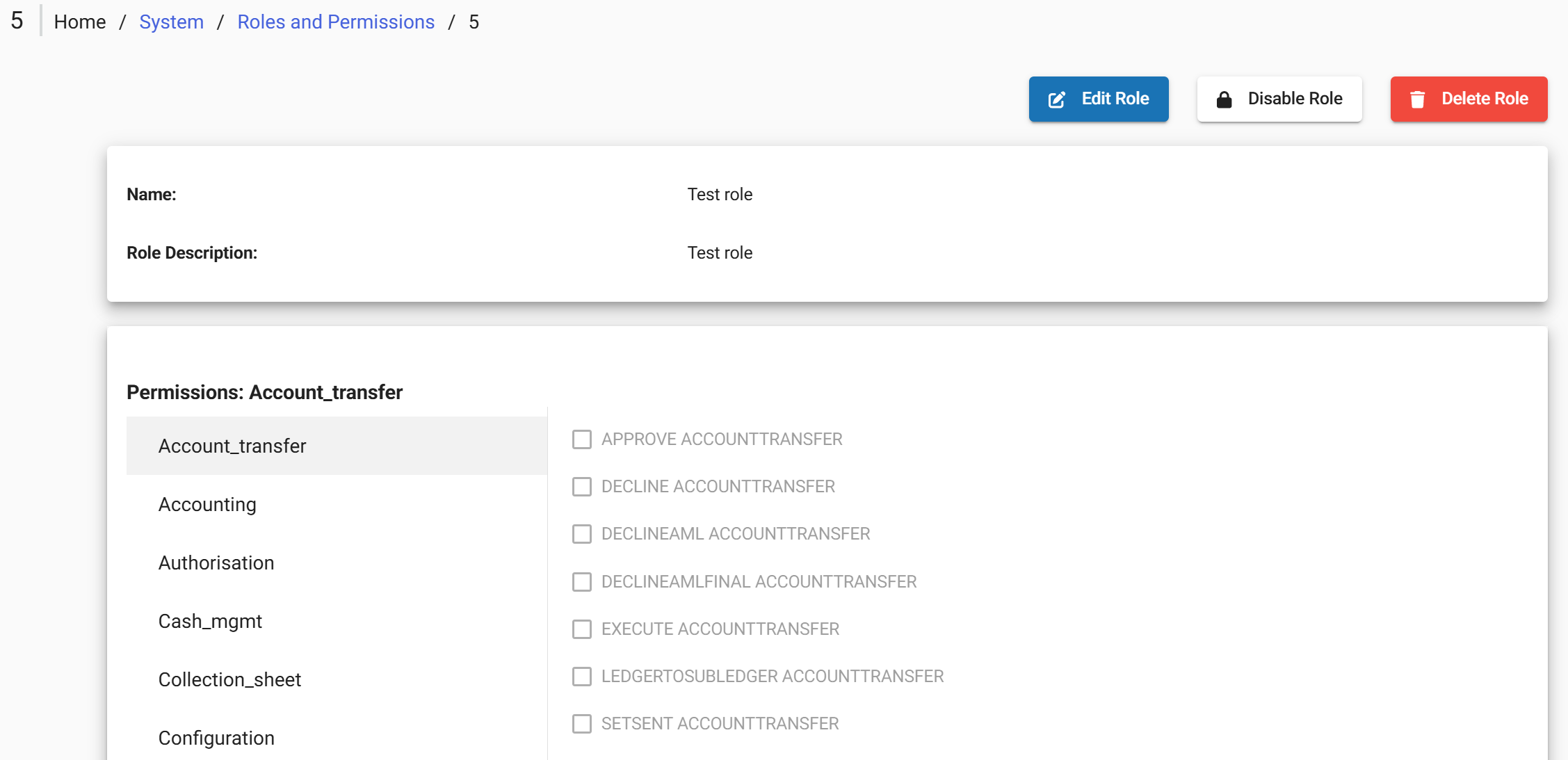
At the bottom of the screen are available list of the permissions. See Permissions Reference
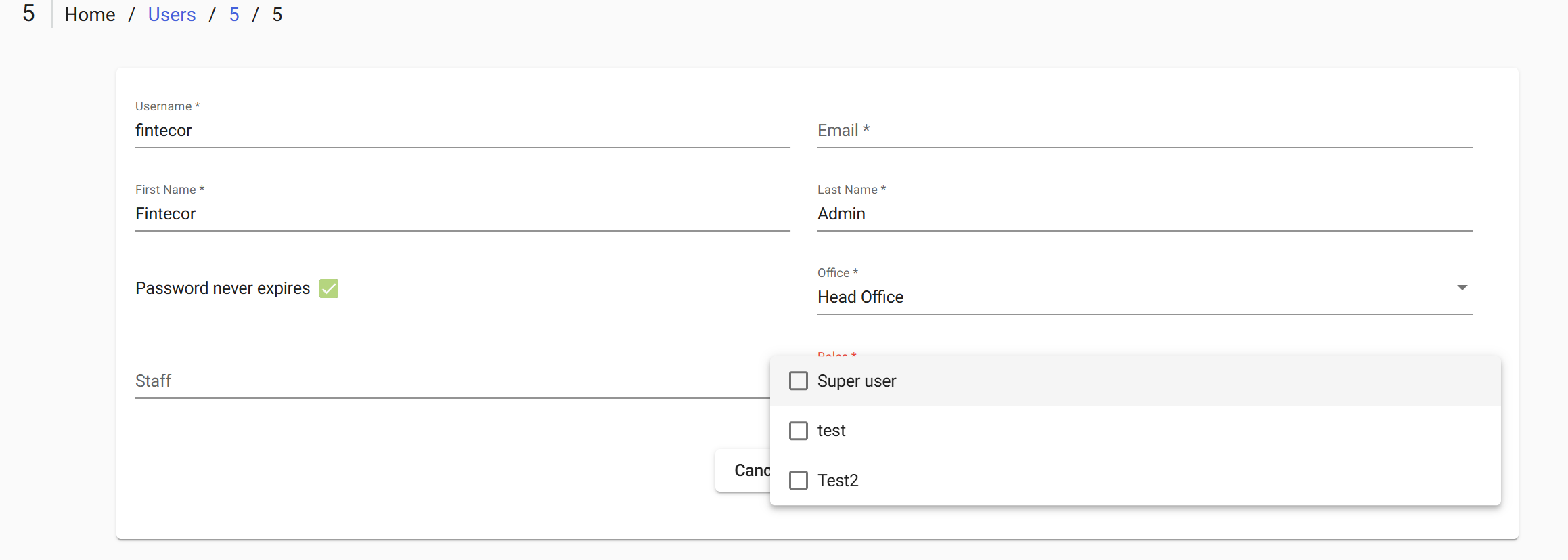
Assigning a Role
To apply Role directly through the interface:
• Admin > Users > Open the target user for editing > Select the Role field
• Tick the checkboxes for the role to be granted> Submit to save changes
Roles Reference
The following tables describe the available permissions by functional category. Its administration available under
· Admin > System > Manage Roles and Permissions.
After FintEdge setup the following default list of roles is configured:
|
Role |
Permissions overview |
|
Super User |
|
|
Back Office |
|
|
Front Office |
|
|
Reports |
|
|
Manage Users |
|
Permissions Reference
The FintEdge provides several high-level permissions (Special) that grant extended or full access beyond standard role-based permissions.
|
Permission |
Function |
|
ALL FUNCTIONS |
Grants full access to all system functionalities. Includes all available actions (create, read, update, delete, approve) across all modules.
|
|
ALL FUNCTIONS READ |
Provides read-only access to all system data
|
|
BYPASS TWOFACTOR |
Allows users to access the system without two-factor authentication. Should be assigned only in exceptional cases due to security implications. |
|
CHECKER SUPER USER |
Grants full approval (checker) rights across the system, Allows the user to approve or reject any operation that requires authorization. |
|
REPORTING SUREP USER |
Provides full access to all reporting capabilities: Allows viewing, generating, and exporting all available reports in the system. |
Note: High-level (Special) permissions override all assigned granular (low-level) permissions within the Fintedge. These permissions should be assigned only in exceptional cases and with proper control.
Back Office
|
Permission |
Function |
|
Account_transfer |
APPROVE ACCOUNTTRANSFER DECLINE ACCOUNTTRANSFER DECLINEAML ACCOUNTTRANSFER DECLINEAMLFINAL ACCOUNTTRANSFER EXECUTE ACCOUNTTRANSFER LEDGERTOSUBLEDGER ACCOUNTTRANSFER SETSENT ACCOUNTTRANSFER SUBLEDGERTOLEDGER ACCOUNTTRANSFER READ STANDINGINSTRUCTION |
|
Accounting |
READ GLACCOUNT CREATE JOURNALENTRY CREATE JOURNALENTRY CHECKER READ JOURNALENTRY RESVERSE JOURNALENTRY |
|
Configuration |
READ ACCOUNTING |
|
Organisation |
READ OFFICE |
|
Portfolio |
CREATE ADDRESS CREATE PAYMENTTYPE |
|
Report |
VIEW CLIENT SUMMARY |
|
Savings Transactions |
CREATE ACCOUNTTRANSFER UPDATESAVINGSOFFICER SAVINGSACCOUNT UNDOTRANSACTION SAVINGSACCOUNT |
Front Office
|
Permission |
Function |
|
Account_transfer |
READ STANDINGINSTRUCTION |
| Portfolio |
CREATE ADDRESS |
|
Report |
VIEW CLIENT SUMMARY |
|
Client Transactions |
READTRANSACTION CLIENT |
|
Savings Transactions |
READ ACCOUNTTRANSFER ACTIVATE SAVINGSACCOUNT |
Reports
|
Permission |
Function |
|
Reports |
Enables users to access the reporting section, choose relevant reports, review data, and download reports as needed. For example, View Active Clients - Email |
Manage Users
|
Permission |
Function |
|
Authorisation |
CREATE USER CREATE USER CHECKERDELETE USER DELETE USER CHECKER READ USER UPDATE USER UPDATE USER CHECKER |
|
Configuration |
READ ADMIN |