General Configuration
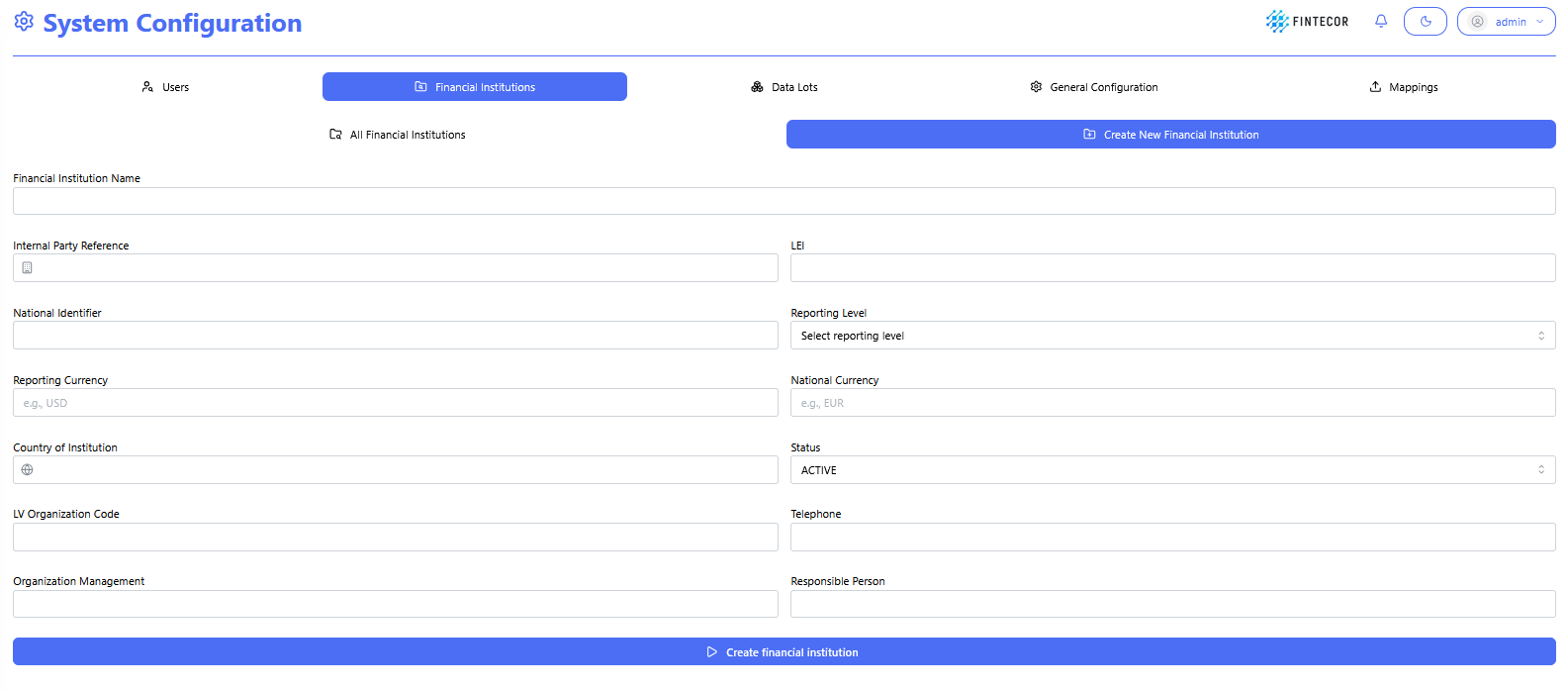
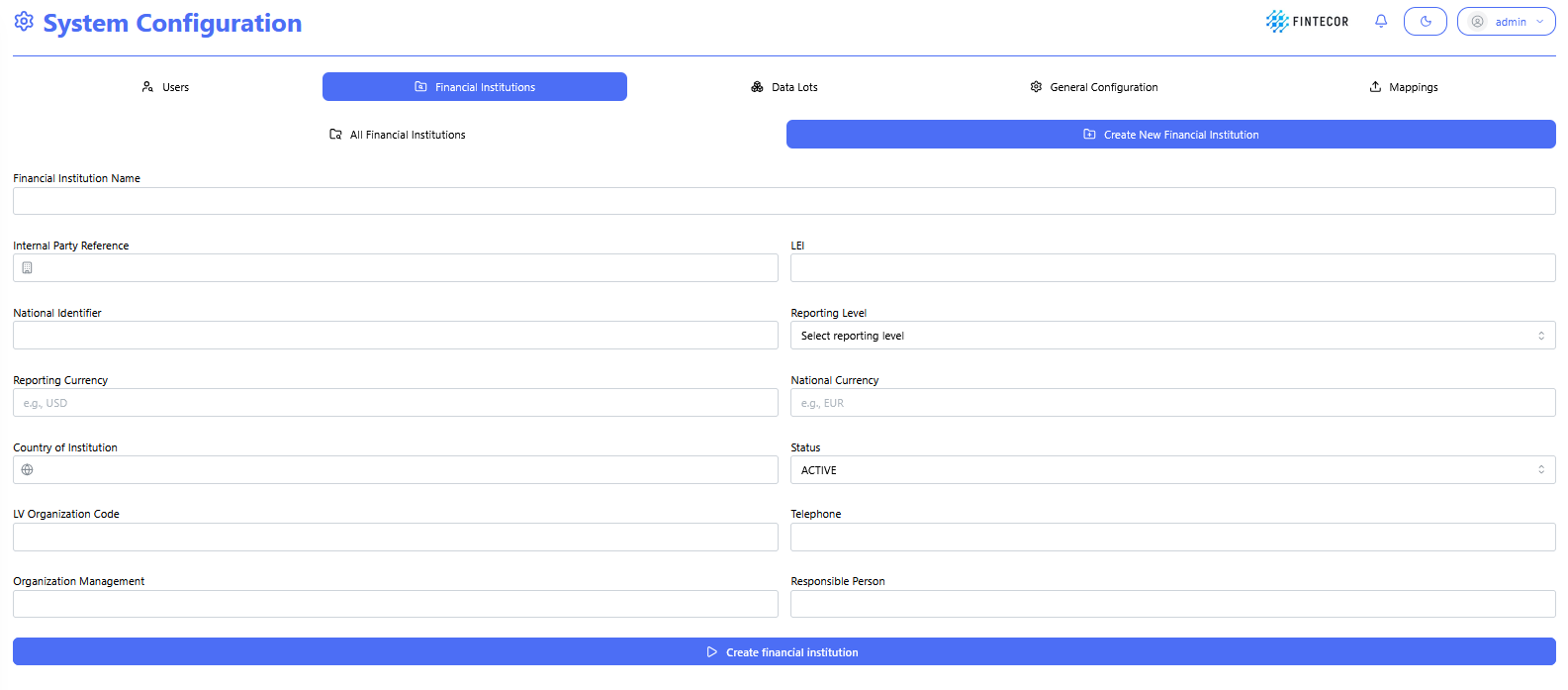
Context: Setup form under System Configuration used to capture institution-level regulatory metadata when onboarding or defining a new financial entity.
Key Components & Elements:
Top Navigation Bar:
-
-
Users: Switches to user management and account creation.
-
Financial Institutions: Active section tab highlighting financial entity settings.
-
Data Lots: Navigates to unit and data lot configuration.
-
General Configuration: Opens system parameters and precision controls.
-
Sub-Navigation Controls:
-
Input Fields:
-
Financial Institution Name: Text input for entering the official legal entity name.
-
Internal Party Reference: Text field for entering internal system mapping IDs or codes.
-
LEI: Text field for entering the Legal Entity Identifier.
-
National Identifier: Text field for specifying national regulatory registration numbers.
-
Reporting Level: Dropdown menu to choose the consolidation scope (e.g., Individual/IND, Consolidated).
-
Reporting Currency: Text input specifying the primary reporting currency code (e.g., EUR, USD).
-
National Currency: Text input specifying the local operating currency code.
-
Country of Institution: Text/search input to define the home country jurisdiction.
-
Status: Dropdown menu to set the operational state (e.g., ACTIVE, INACTIVE).
-
LV Organization Code: Text field for local Latvian organizational code tracking. Used for local reporting submission.
-
Telephone: Contact phone number input. Used for local reporting submission.
-
Organization Management: Text field for listing key executive/board metadata. Used for local reporting submission.
-
Responsible Person: Text field to assign a primary compliance/reporting contact. Used for local reporting submission.
-
Primary Action Button:
Context: Administrative overview table displaying configured financial institution records, their regulatory parameters, and row-level management actions.
Key Components & Elements:
Sub-Navigation Controls:
-
-
Data Grid Columns:
-
Displays ID, Name, Ide Internal Party Reference, LEI, National Identifier, Reporting Level, Reporting Currency, National Currency, Country, Status, LV Organization Code, Organization Management, Responsible Person, Telephone, Modified timestamp/user, and Created timestamp/user.
-
Row Action Buttons:

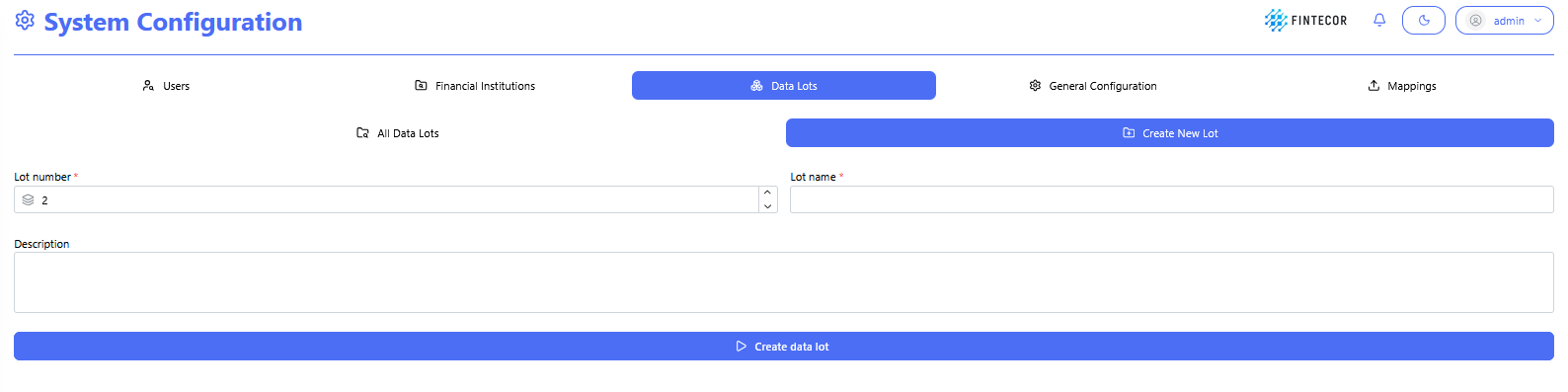
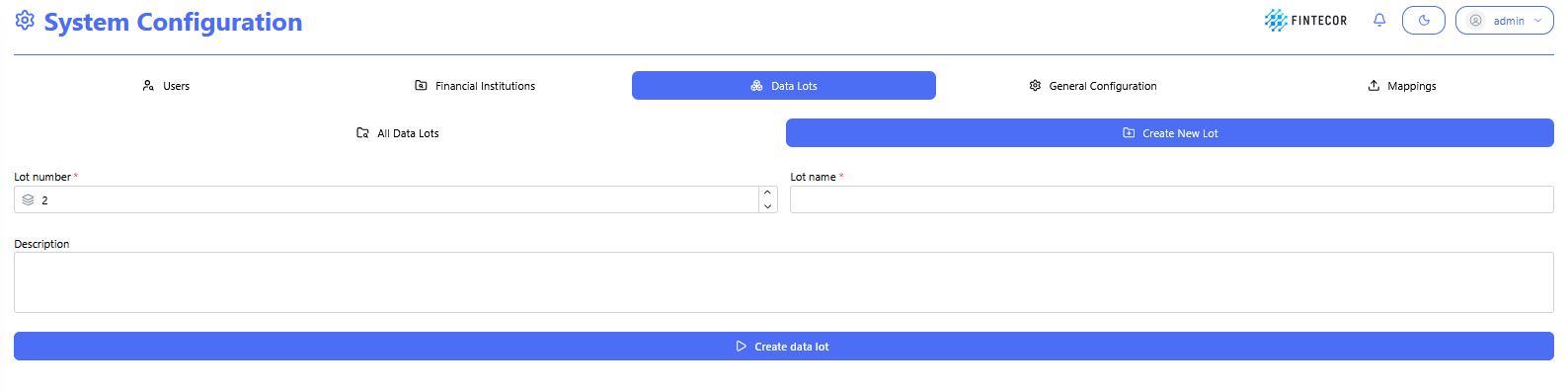
Context: Interface within the System Configuration module where new Data Lots are defined and created.
Key Components & Elements:
Sub-Navigation Controls:
-
-
-
-
Input Fields:
-
*Lot number : Numeric input/spinner control to assign a unique numerical sequence ID for the lot.
-
*Lot name : Text input control to give the data lot a descriptive title.
-
Description: Multi-line text area to specify details or notes about the data unit.
-
Primary Action Button:
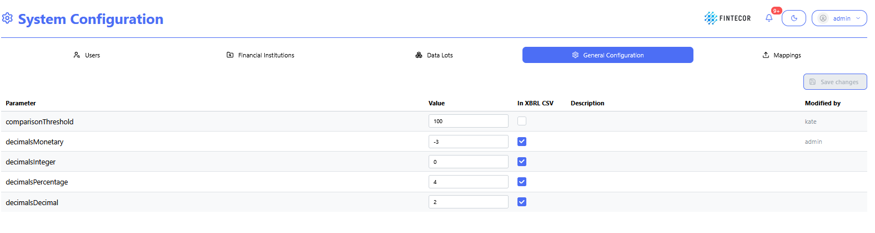
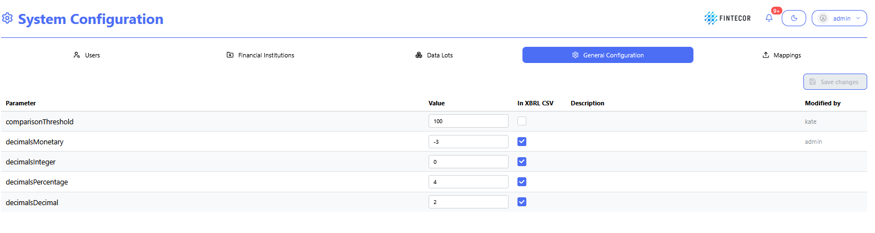
Context: Central configuration workspace showing general platform settings, calculation parameters, and output decimal formatting rules.
Key Components & Elements:
General Configuration is highlighted.
-
Parameter Form Controls:
-
Parameter Column: Displays system keys (comparisonThreshold, decimalsMonetary, decimalsInteger, decimalsPercentage, decimalsDecimal).
-
Value Inputs: Input boxes to define parameter value.
-
In XBRL CSV Checkboxes: Toggles specifying whether each parameter value used for xbrl-csv purposes.
-
Description Column: Shows explanations for each parameter key.
-
Modified by Column: Displays audit metadata for the last user who updated the row.
-
Action Buttons:
Action Controls: Features a "Save changes" button in the upper-right area to apply updated parameter configurations.