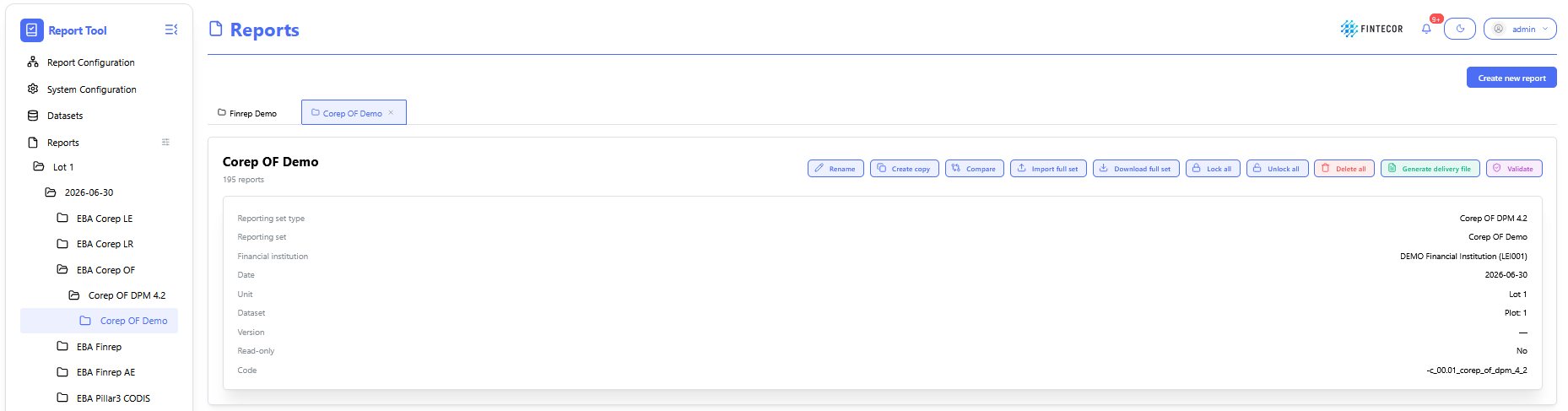
Create New Report
Context: reporting workspace showing a list of possible actions for selected report or specific template.
-
-
Toolbar Action Controls:
-
Freeze headings: Pin/unpin row and column header labels so they remain visible while scrolling through large data tables.
-
Cell size: Adjust row heights, column widths, and grid density for optimal table alignment.
-
Read-only / Edit Toggle: Toggles the report between view-only mode and active editing state.
-
Save changes: Persists manual entries, updates, or overrides made within the report grid.
-
Reload data: Re-fetches current values directly from the backend dataset.
-
Reload with corrections: Re-populates grid values while applying the latest override rules and validation adjustments.
-
Export / Import: Dropdown menu to download the report (e.g., Excel/XBRL) or upload external data overrides.
-
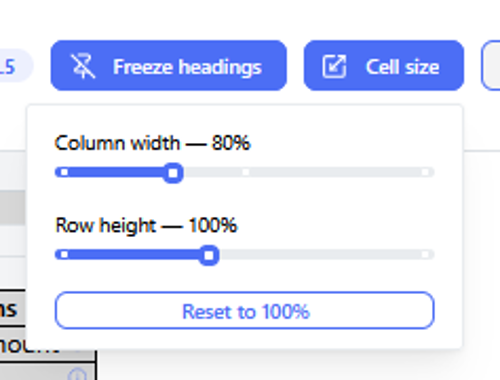
Context: Illustrates how workspace layouts can be adjusted to fit complex reporting tables.
-
Key Components & Elements:
-
Resize Handles / Grid Boundaries: Highlights interactive borders between columns and rows within the data grid.
-
Excel-Style Interaction: Accompanied by documentation noting that standard spreadsheet click-and-drag mouse gestures can be used to modify row heights and column widths dynamically.
-
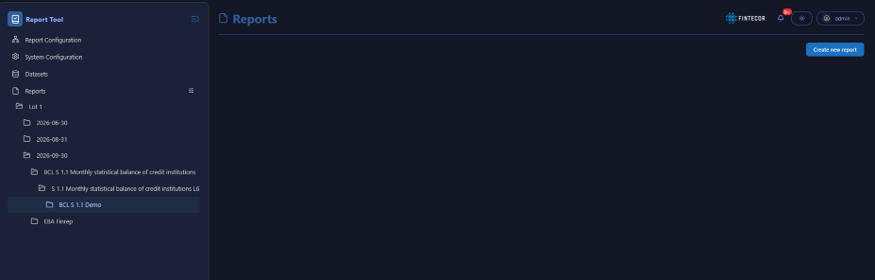
Context: Focuses on user preference controls located in the application header.
-
Key Components & Elements:
-
Theme Switcher: Displays the upper right-hand corner control button used to toggle between light and dark visual themes.
-
UI Header Area: Illustrates the surrounding status icons and user profile indicators in the top navigation bar.
-
Context: User profile dropdown menu accessed from the main application header.
-
Key Components & Elements:
-
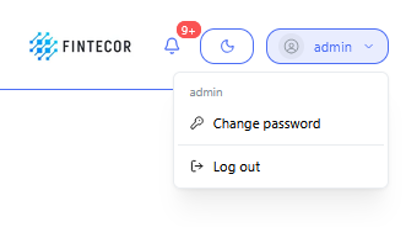
Active Session Indicator: Opened by clicking the "admin" user button in the top navigation bar to display current user context.
-
Account Actions: Features quick-access action links for Change password and Log out.
-