Manage Roles

Creating a Role

New role can be created from the top navigation bar where all existing roles are available:

  •  Admin> System > Manage Roles and Permissions
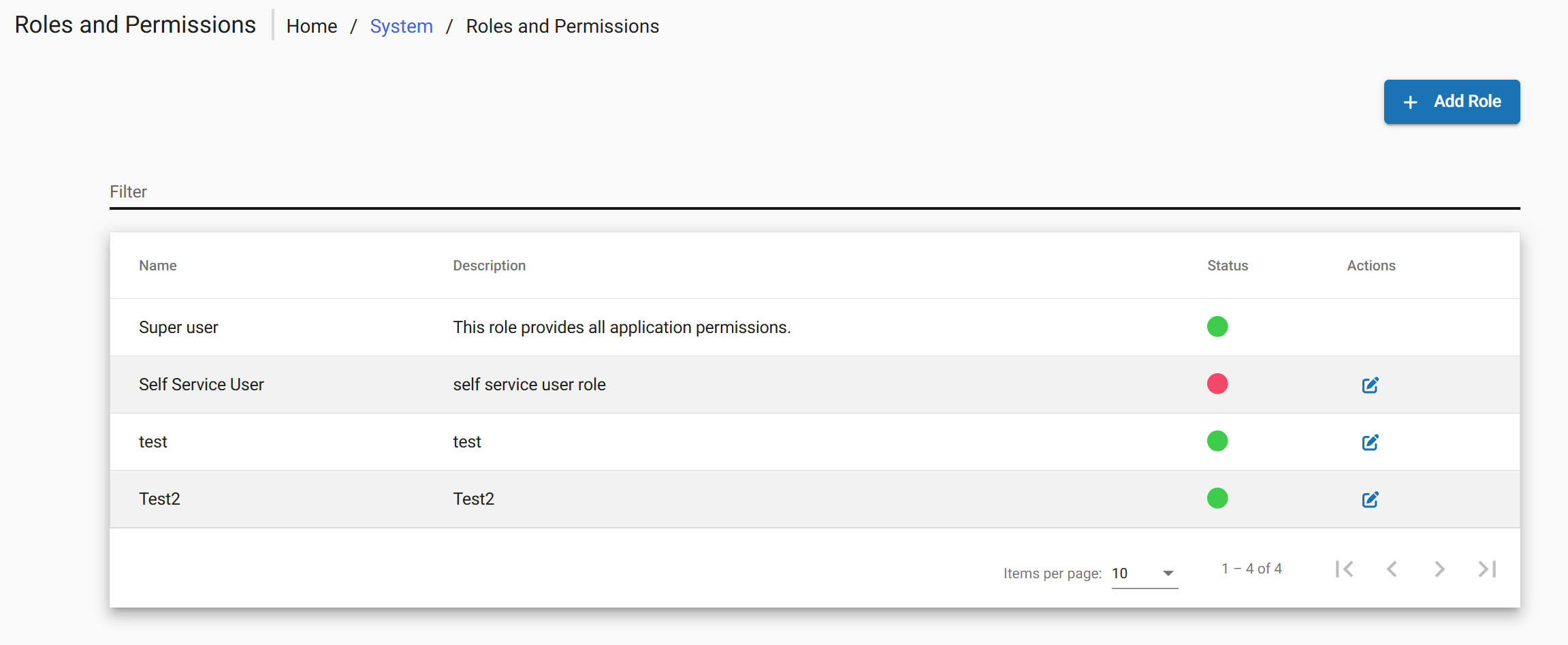
image.png

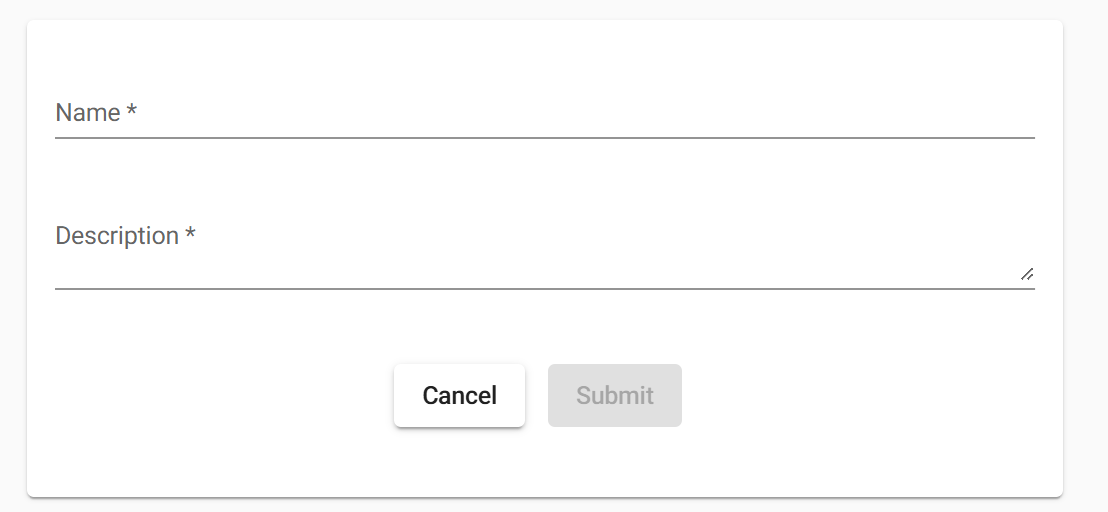
  • Choose Add Role.

image.png

Editing and Deleting a Role

After role created the following actions are available via buttons at the top of the screen:
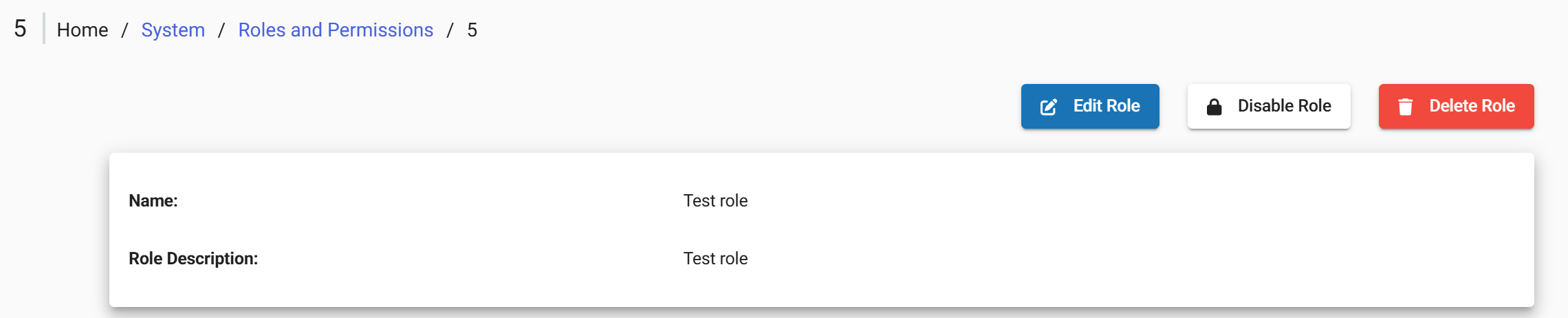
    Edit Role Opens the user profile in edit mode to modify user details Disable/Enable Role Controls whether a role is active and can be assigned or used within the system Delete  Role Removes the role from the system

    image.png


    Assigning a Role

    To apply Role directly through the interface:

            Admin > Users >   Open the target user for editing >  Select the Role field 

            Tick the checkboxes for the role to be granted> Submit to save changes
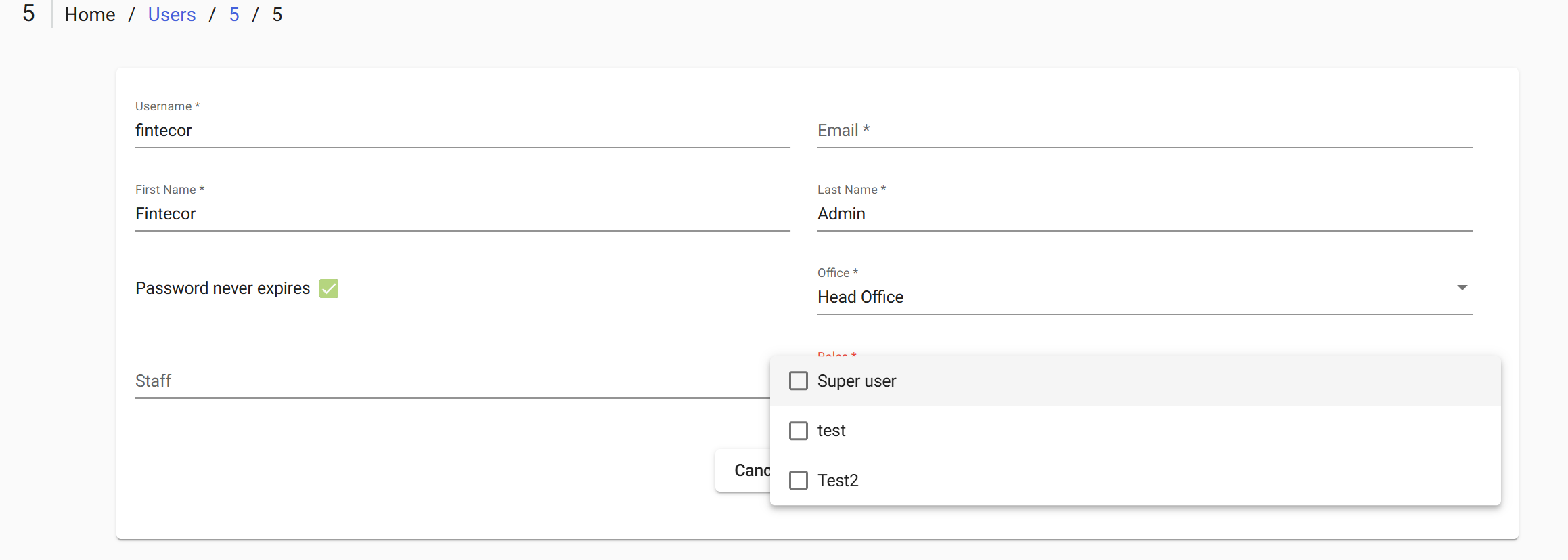
    image.png

    Roles Reference

    The following tables describe the available permissions by functional category. Its administration available under

    ·        Admin > System > Manage Roles and Permissions.

    After FintEdge setup the following default list of roles is configured:

    Role

    Permissions overview

    Super User

    • A user with full system access and administrative privileges.

    Back Office

    • Manage client lifecycle (Create, block, close, reactivate)
    • Open, update, and maintain savings accounts
    • Perform transfers 
    • View accounting, maintain journal entries
    • Manage and review system configuration data (products, currencies, code values etc.)
    • Execute approval (checker) actions across multiple processes
    • View main reports

    Front Office

    • Create and update client profiles
    • Open, update, and maintain savings accounts
    • Read transfers
    • Support client requests and basic operations
    • View basic reports

    Reports

    • View reports 
    • Access financial and operational data 
    • Export data for analysis 

    Manage Users

    • Create, update, and delete users
    • Manage user access and permissions
    • Perform approval actions for user changes
    • View administrative configuration settings