
Operations with Template
Context: reporting workspace showing a list of possible actions for selected template.
-
Toolbar Action Controls:
Rename:change name of selected reporting set,
Create copy: create copy of selected reporting set
Compare: compare two selected reporting sets.
Lock All/ Unlock All: Toggles the report between read-only mode and active editing state for all included templates.
Delete all: delete full reporting set with all templates.
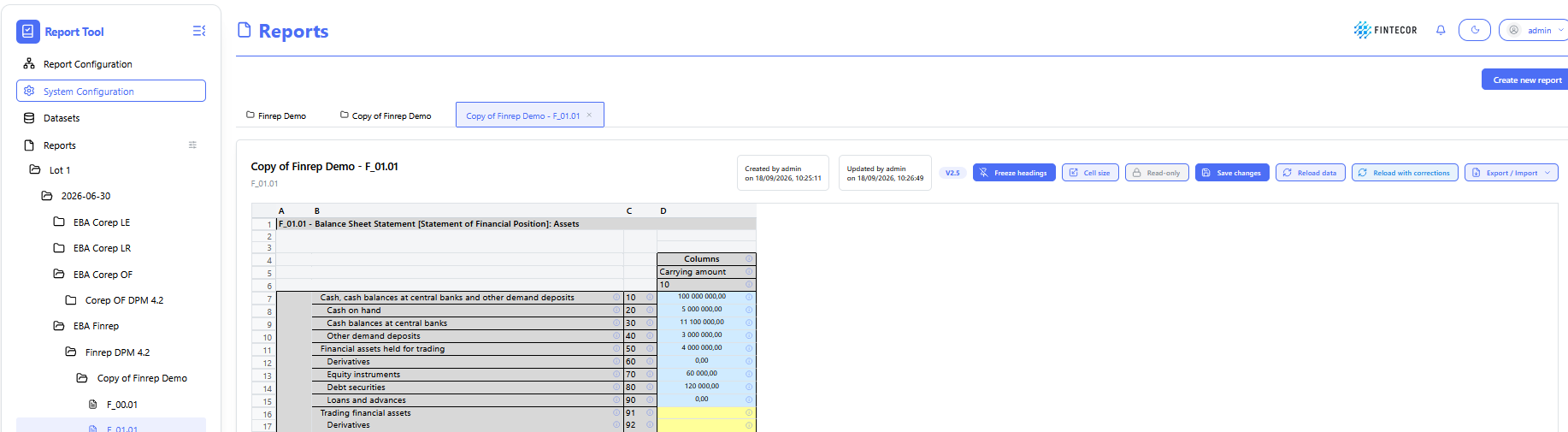

Reload data: Re-fetches current values directly from the backend dataset.
Reload with corrections: Re-populates grid values while applying the latest override rules and validation adjustments.
ExportReload / Import:data: DropdownRe-fetches menucurrent tovalues downloaddirectly from the reportbackend (e.g.,result Excel/XBRL)dataset oroverwriting uploadall externalmanual datacorrections.
Reload with corrections: Re-fetches current values directly from the backend result dataset keeping all manual corrections.
Export/Import: export template as separate Excel file/import template data from Excel as separate Excel file.
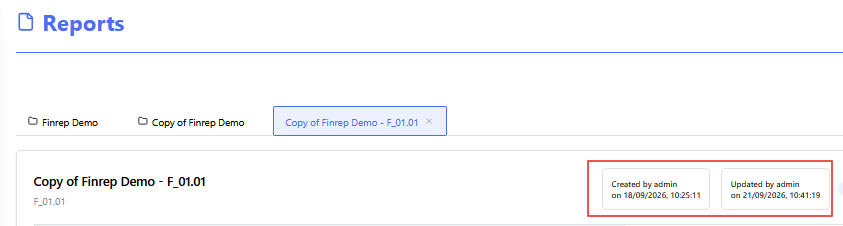
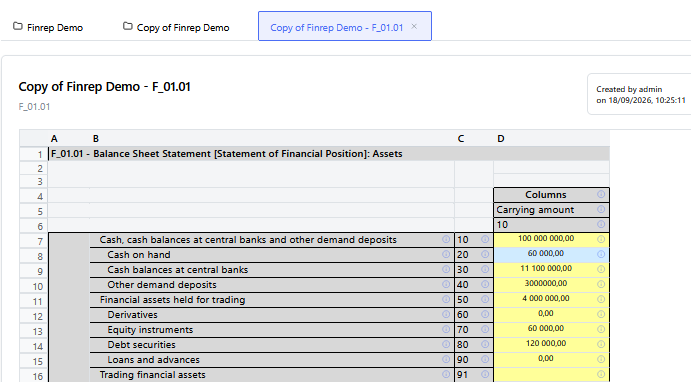
Context: Illustrates howtemplate workspacechange layoutslog:
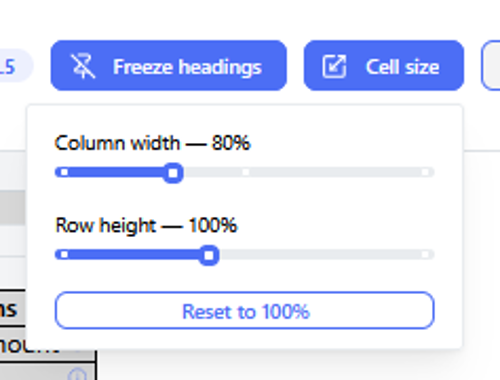
Context: adjustedIllustrates to"Save fitchanges" complex reporting tables.functionality
-
Key Components & Elements:
-
ResizeWhenHandlesmanual/correctionGriddoneBoundaries:inHighlightstemplateinteractive(manuallybordersorbetweenusingcolumnsImportandfunction),rowsSavewithinchangethebuttondata grid.
-
Excel-Style Interaction:Accompanied by documentation noting that standard spreadsheet click-and-drag mouse gestures canshould be used tomodifysaverow heights and column widths dynamically.
Context: Focuses on user preference controls located in the application header.
Key Components & Elements:
Theme Switcher: Displays the upper right-hand corner control button used to toggle between light and dark visual themes.
UI Header Area: Illustrates the surrounding status icons and user profile indicators in the top navigation bar.
Context: User profile dropdown menu accessed from the main application header.
-
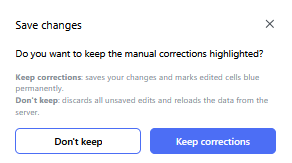
Key Components & Elements:- Don't
ActivekeepSession-Indicator:don'tOpenedkeepbymanualclickingcorrectionsthehighlighting."admin"Correctionuserwillbuttonbeinsaved,thebuttopnotnavigation bar to display current user context. - Keep
with blue colorAccountcorrectionsActions:-Featuresallquick-accessmanualactioncorrectionlinkswillforbeChange passwordsaves andLoghighlightedout.
- Don't
.